

Part of our Business Finance guide
Introduction
Bad form data often shows up as a missing phone number, a vague request, a wrong address, or a customer name spelled three different ways across three systems. Then the small issue becomes extra work for sales, support, finance, operations, or field teams.
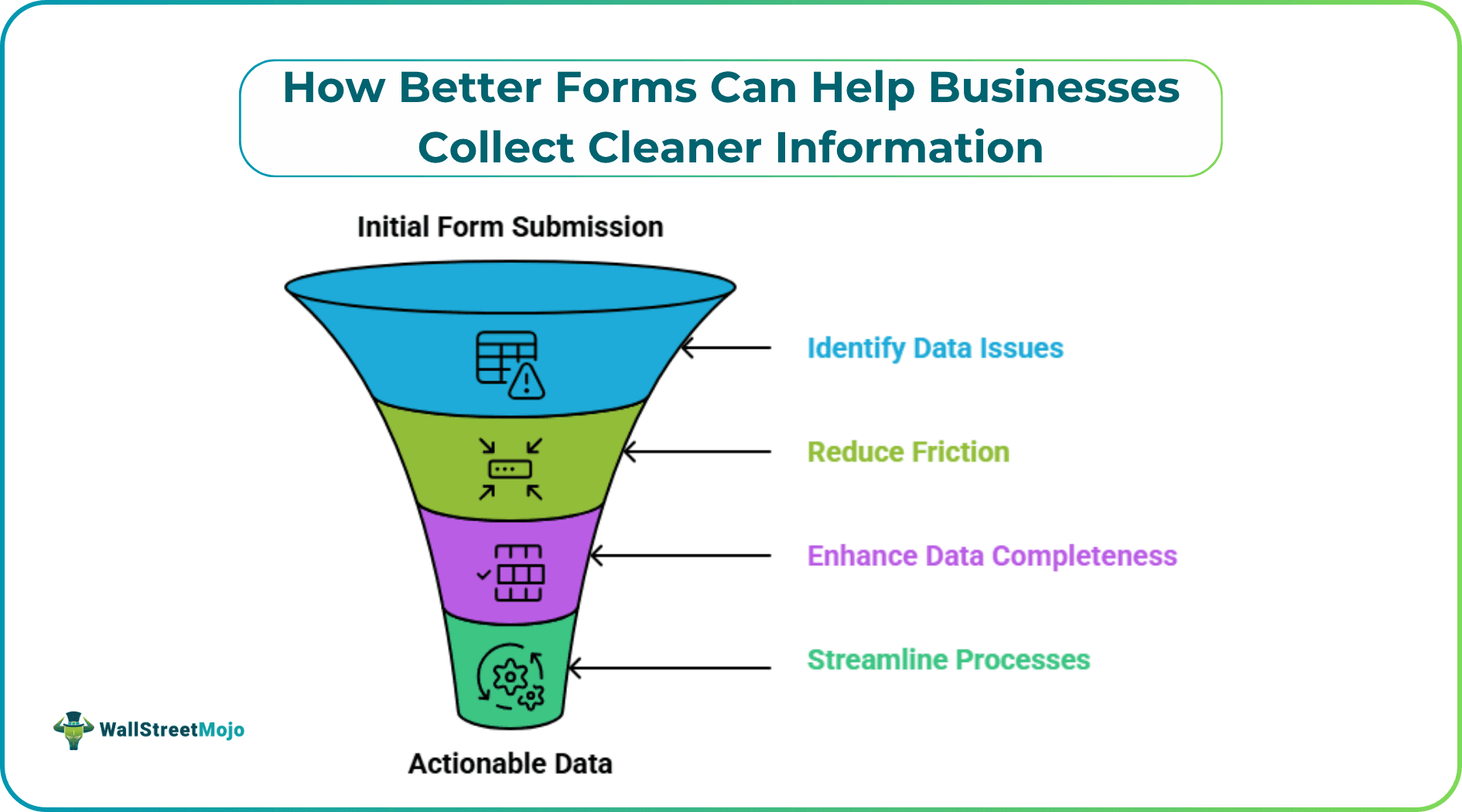
Better forms reduce that friction before it reaches the team. They help people give complete answers, use the right format, and understand exactly what is expected. Cleaner information comes from asking sharper questions in a smarter order.
A form should be designed around what happens after submission. A lead form may need budget, company size, service interest, and timeline, or a repair request may need location, issue type, photos, urgency, and entry instructions.
When the next step is clear, weak fields become easier to spot. If a question will not help someone act, route, approve, quote, or follow up, it probably does not belong in the form.

Source: https://unsplash.com/photos/person-using-laptop-computer-Hcfwew744z4
Choose Fields That Control Messy Answers
Open text boxes are often overused. They are helpful for explanations, but they create inconsistent data when the business needs clean categories.
A dropdown works better for service type, department, location, priority, or request status. A date picker keeps dates in one format. File upload fields are useful for photos, receipts, contracts, screenshots, or signed documents.
For example, a maintenance form should not rely on one large box that says Describe the issue. It can ask for room, issue type, urgency level, permission to enter, and photos. A final comment field can still be included, but it should not carry the whole request.
Use Validation Before Bad Data Gets Submitted
Validation catches common mistakes while the person is still filling out the form. This is much better than finding the error later.
Email fields should require a proper email format. Phone fields should guide users toward the right number length. Number fields can block impossible values. Required fields should be used only when the answer is truly needed.
The wording also matters. A message like Enter a 10-digit phone number is more useful than Invalid response. It tells the user exactly what to fix.
Keep the Flow Easy to Follow
A clean form should feel like a short conversation. It should begin with basic details, move into the main request, then ask for files, timing, approval, or next steps.
A practical order could look like this:
- Contact information
- Request type
- Main details
- Files or photos
- Timing or approval needs
Show Only the Questions That Matter
If someone selects New Project, the form can ask about goals, timeline, budget, and services. If they select Account Issue, it can ask for account number, screenshots, problem type, and preferred contact method.
This also helps with document workflows. A form might first ask whether a file needs review, approval, or signature. If a signature is needed, the next fields can collect signer names, email addresses, roles, and attachments. A guide on how to esign a pdf may help later in the process, but the form still needs accurate signer details first.
Make Mobile Use Simple
Many forms are completed on phones. Customers, technicians, inspectors, drivers, and contractors often submit information while away from a desk.
Mobile forms need clear labels, large buttons, short fields, and simple uploads. Long dropdowns, crowded layouts, and oversized text boxes make mistakes more likely.
For field teams, mobile forms can also reduce duplicate work. A technician can add photos, record parts used, confirm customer approval, and submit notes before leaving the site. That is cleaner than writing notes on paper and entering them later.
Explain Why You Need Sensitive Details

Source: https://unsplash.com/photos/person-types-on-a-laptop-on-a-checkered-table-Ctwx7RnbbbI
People give better answers when they understand why a field exists. This is important for payment details, tax information, IDs, documents, location data, and signatures.
A short note can help. For example, Upload a photo so we can assign the right technician is clearer than Upload file. A note beside a tax field can explain that it is needed for billing.
Businesses should also avoid collecting sensitive information they do not need. Cleaner data is not only accurate. It is also easier to manage and protect.
Connect Form Data to the Right System
A form is more useful when its data moves directly into the next tool. Lead forms can feed a CRM. Support forms can create tickets. Inspection forms can generate reports. Order forms can notify the right department.
Manual copying creates new errors, even when the original submission is clean. Matching form fields to the systems your team already uses helps prevent duplicate records, missing details, and inconsistent labels.
Review Submissions and Improve the Form
Forms should be improved based on real use. After a few weeks, check where people get confused. Look for skipped fields, unclear answers, repeated follow-up questions, and information entered in the wrong place.
Small edits can make a big difference. Replace a vague text box with a dropdown. Add an urgency field. Make photo upload required only for certain issue types. Remove questions nobody uses.
Recommended Articles
For more on Business Finance, explore these related articles from our Business Finance guide.