


What Is Developer Tab In Excel?
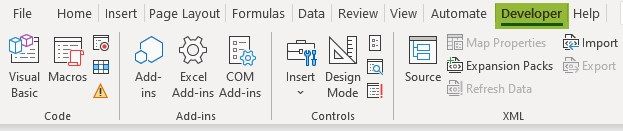
The Developer Tab in Excel is a tab that has some functions and tools used to generate Macros, create VBA applications, design forms, and import/export XML, that is not found in Excel by default. We have to enable the tab from the “Excel Options” window.
For example, when we open the Excel worksheet, by default, the Developer Tab will not be found, and the ribbon will be as shown below.

However, once we enable the “Developer” tab, the tab will be visible on the Excel ribbon always, even when we close and reopen the workbook, as shown below.


Key Takeaways
- The Developer tab in Excel is an inbuilt feature that can be enabled or disabled as required to use some additional features, such as Macros, Form Controls, VBA editor, etc.,
- We can run the VBA Macros in the following ways, Press the Function key F5. Assign a Macro to a button or a Text Box to run it. In the Visual Basic Editor window, press the “Run” button, as shown in the following image.
- We can make a worksheet data interactive by using the options in the Controls group of the Developer Tab, such as Check Box, Spin Button, Scroll Bars, etc., as shown below.
How To Add Developer Tab In Excel?
The steps to add theExcel Developer Tabare as follows:
- Open a new Excel sheet and navigate to the “File” tab. Then, go to the “Options.”

- After clicking “Options,” we must select “Customize Ribbon” on the left. Next, select “Main Tabs” on the right, then check the “Developer” checkbox and click the “OK” button.

- As a result, the “Developer” tab would appear in the Excel file.


How To Write VBA Programs Using Developer Tab?
We can use the Developer Tab in Excel to write VBA programs, as follows:
First, open an Excel workbook – select the “Developer” tab – go to the “Code” group – click the “Visual Basic” option to open the “Visual Basic Editor”, as shown below.
Now, the “Microsoft Visual Basic for Applications – Working Test.xlsx” window opens. Click the “Insert” tab – and select the “Module” option, as shown below.

Once the “Module” window opens, write the required VBA Code, and Run/Execute it.
Examples
We will consider examples to use the Excel Developer tab to write VBA programs.
Example Example #1 – Writing a Simple Code for Displaying “Hi, Welcome to VBA”.
The steps to write a simple VBA program are as follows:
- First, navigate to the “Developer” tab, and select “Visual Basic.” A new window will pop up.
- Next, double-click on “Sheet1 (Sheet1)”. A blank document or pane appears on the right side.

- Next, write the code shown in the image below, and click the “Run” button.
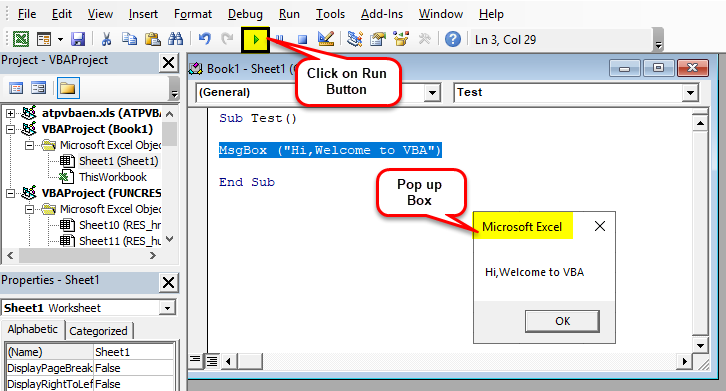
A pop-up box would appear saying, “Hi, Welcome to VBA”, as shown above.
Example #1 Code Explanation:
- Sub and End Sub are used as procedures or, say, the main body of the program.
- “Msgbox” is a functional feature in the VBA package that displays whatever is written in it here, for example (“Hi, Welcome to VBA”).
Save the above code as a .xlsm file to save the macro code.
Example #2 – Click on Button Feature
This particular feature enables anyone to run the code with the click of a button.
For better understanding, let us illustrate where a person dynamically enters their name and birthplace, which would be displayed as an output.
- First, we must go to the “Developer” tab, click on the Radio buttons in excel, and select “Button (Form Control).”

Now, drag it anywhere on the worksheet, and the following dialog box will appear. Rename the “Macro name.”

Click the “New” button, and the following code page will appear.

Example #2 – Coding part and Explanation

- “Dim” function is used for declaring the variable, which can be the string, numeric, etc… (Here, name and birthplace are variables declared as string.)
- “InputBox” is a functional feature in VBA wherein the user is asked for input.
- “Msgbox” is the functional feature in the VBA package, which displays whatever is written.
Now close the code page window.
Then, we must right-click on the button, select the “Edit Text” in the Excel where one had created the button, and rename it to “Name_Birth.”

Click on the button, and enter the name and birthplace. Two prompts would pop up for name and birth (enter the name and birthplace, e.g., Dhrish and Pune).


After inserting the name, the following output appears.

Now, save the file as the “.xlsm” file.
How To Record A Macro In Developer Tab?
We can record a Macro when we must perform a task repetitively, but want to save time on both the repetitive work and coding.
So, here is the earlier example that we took earlier. Consider the data given below. To color columns with formulae for every file, we can record the work by doing it first manually and then run it for other files.

The steps to color columns F, G, and row total as yellow as formula columns and rows are as follows:
- First, go to the “Developer” tab, and click on Record Macro in Excel.

Once we click “Record Macro,” a dialog box will appear. Rename it to “Color_Yellow.”

Now, color columns F, G, and row total as “Yellow”, as shown below.

After the coloring, go to the “Developer” tab, and now click “Stop Recording”.

Now, go to the “Developer” tab, click the “Visual Basic” option, and select “Module1”, as shown below.

Next time, if we want to repeat the task, we can click the (“Run Macro”) button by copying and pasting the same code into the new Excel sheet using the link. Writing a simple code for displaying.
How To Ensure Macro Security Using Developer Tab?
To ensure Macro Security, we can enable password-protected macros if needed.
The steps to perform the Macro Security are as follows:
- First, go to the “Developer” tab, and open “Visual Basic.”

Open the “Macro” for which code needs enabling of the password (e.g., we take the Color_Yellow macro as in the above example).

We must select “Tools” and “VBAProject Properties.”

Next, subsequently, a dialog box will appear. Here, select the “Protection” tab, check/tick the “Lock project for viewing”, enter the desired password, confirm it, and click “OK.”

- Finally, save it as a .xlsm file while saving and closing it.
To cross-verify for Macro security, open the file and repeat steps 1,2 and 3. As a result, it will ask for a password. Insert the password, and click “OK”, to view the Code.

Important Things To Note
- The Developer tab is a built-in tab in Excel.
- It is easy to automate everything with the use of recording the macro.
- The best part about this is run-time prompts, or the user prompts, which can be given by clicking the button in VBA.
- We can also create forms or basic UI in VBA. Please refer to the references for the same.
Frequently Asked Questions (FAQs)
What Is VBA Macro used from the Developer Tab In Excel?
• VBA or Visual Basic Application is a programming language used in Microsoft applications like MS Excel, MS Word, MS PowerPoint, etc.
• Macro is a piece of code written in Excel to perform repeated tasks.
VBA Macros are used to automate repetitive and complex tasks to save time and manual work. We can record the VBA Macro in Excel and run it as per our requirements.
Why is the Developer Tab In Excel not working?
A few reasons the Developer tab may not work are as follows:
• In Excel, the tab is not enabled by default. So, once we enable it from the Excel Options window, we can view the Developer tab on the ribbon for further use.
• The Excel the file may be corrupted, causing most of the tabs or options to grey out. In such scenarios, we must reinstall the application or just reopen the file for the tabs to work.
Explain the features available in the Developer Tab in Excel.
The following groups are found in the Developer Tab, namely:

1. Code – It helps users to create VBA Codes and Macros where we can make, record, and edit macros to automate repetitive or manual tasks in Office applications.
2. Add-ins – It helps us activate extra features, functionalities, and commands in the workbooks that are not enabled in Excel by default.
3. Controls – It is of 2 types, Form Controls & ActiveX Controls. Both are used on worksheets to create interactive buttons that are simple and easy to use.
4. XML – It helps us to import and export Extensible Markup Language (XML) data, i.e., to exchange data between different applications.
Recommended Articles
This article has been a guide to the Developer Tab in Excel. Here we enable Developer Tab to write, record, & secure Macros, VBA, examples & downloadable excel template. You may learn more about Excel from the following articles: –