

Part of our Time Series Analysis guide
Introduction
I didn’t think much about signature standards until one of my signed PDFs failed a compliance check. The document itself was fine. The signature was visible. Still, it was flagged as insufficient. That moment forced me to look closer at how digital signatures are evaluated. I had assumed that a visible signature meant the job was done.
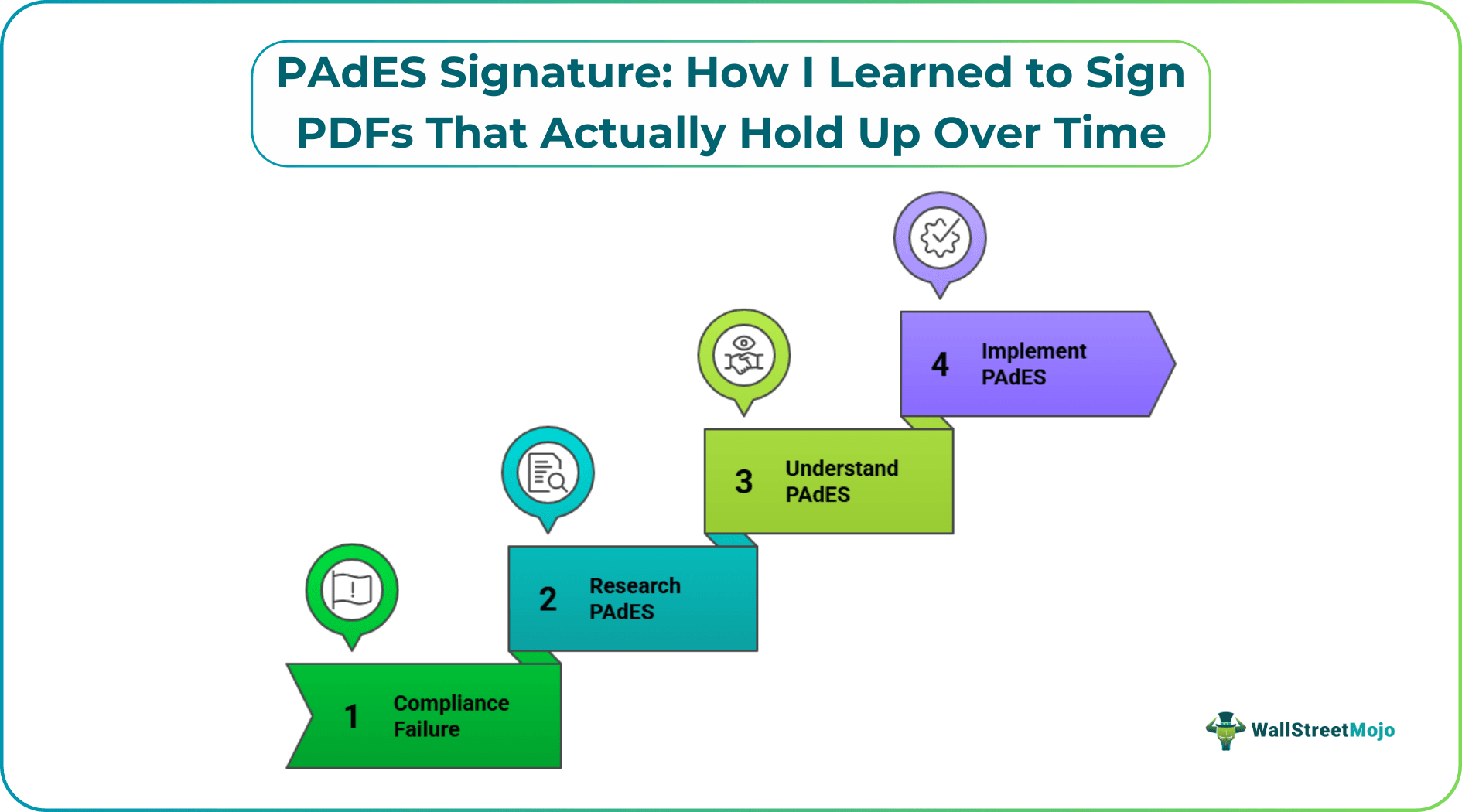
What I learned instead was that certain documents require a specific standard, not just proof of intent. That’s when I started looking into PAdES and why they’re often required in regulated workflows. A PAdES signature is not about appearance. It’s about structure, validation, and long-term trust. Since then, I’ve adjusted how I handle signed documents and now rely on a PAdES PDF whenever long-term verification matters.
Understanding PAdES Signatures and Their Importance
A PAdES signature is a digital signature standard created specifically for PDF documents. The term PAdES comes from PDF Advanced Electronic Signatures, a framework developed to support legal and regulatory requirements, particularly in the European Union. While many digital signatures focus on immediate verification, PAdES is designed with longevity in mind.
The main reason PAdES exists is to ensure that documents remain valid long after they are signed. A standard digital signature often depends on certificates that expire. Once those certificates are no longer valid, the signature may fail verification even if the document itself has not changed. A PAdES PDF avoids this issue by embedding validation information directly into the file.
There are several PAdES levels, each suited for different use cases:
- PAdES-B-B, which provides basic signer identification
- PAdES-B-T, which adds a trusted timestamp
- PAdES-B-LT, which includes long-term validation information
- PAdES-B-LTA, which supports archival use over extended periods
Each level increases the document’s ability to stand on its own over time. This layered approach is why PAdES is commonly required for contracts, compliance records, government filings, and documents that may be reviewed years after signing.
How To Create a PAdES Signature On PDF?
Method 1. Using UPDF Sign
Before I apply a PAdES signature, I focus on preparing the PDF carefully. I use UPDF to review the document, clean up formatting, and confirm that all content is final. Once a document is signed using PAdES, even a small change will invalidate the signature.
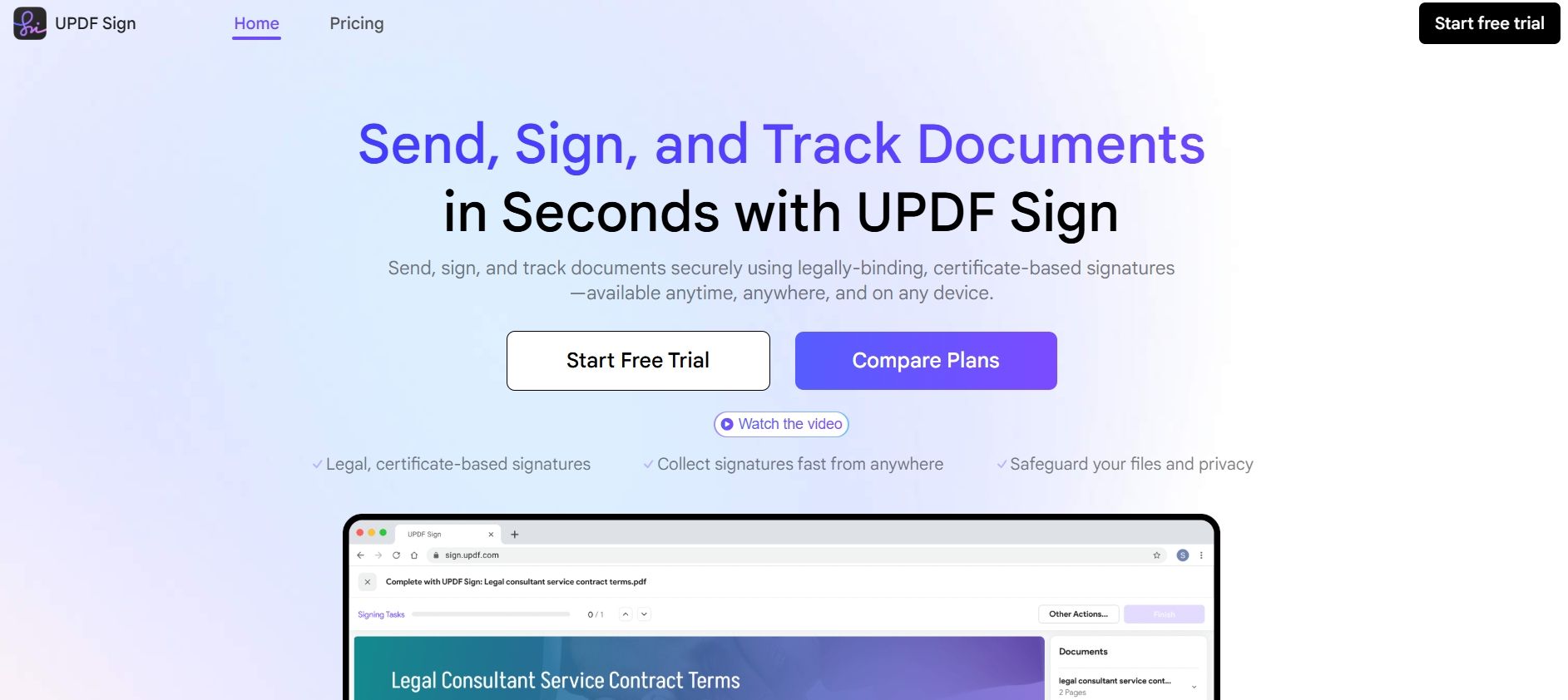
UPDF Sign is the service I use to apply the actual signature. It supports PAdES-B-B, PAdES-B-T, and PAdES-B-LT, which cover most professional requirements. The workflow is straightforward and doesn’t require deep technical setup, which matters when signing multiple documents under time constraints.
Choosing A Plan That Fits
UPDF Sign offers different plans based on signing volume and validation needs. I reviewed the available options before choosing a plan that matched how often I sign documents and which PAdES level I require.
Having that clarity upfront helped me avoid unnecessary features while still meeting compliance needs.
How I Prepare A PDF For PAdES Signing
1. Open PDF inside UPDF Sign
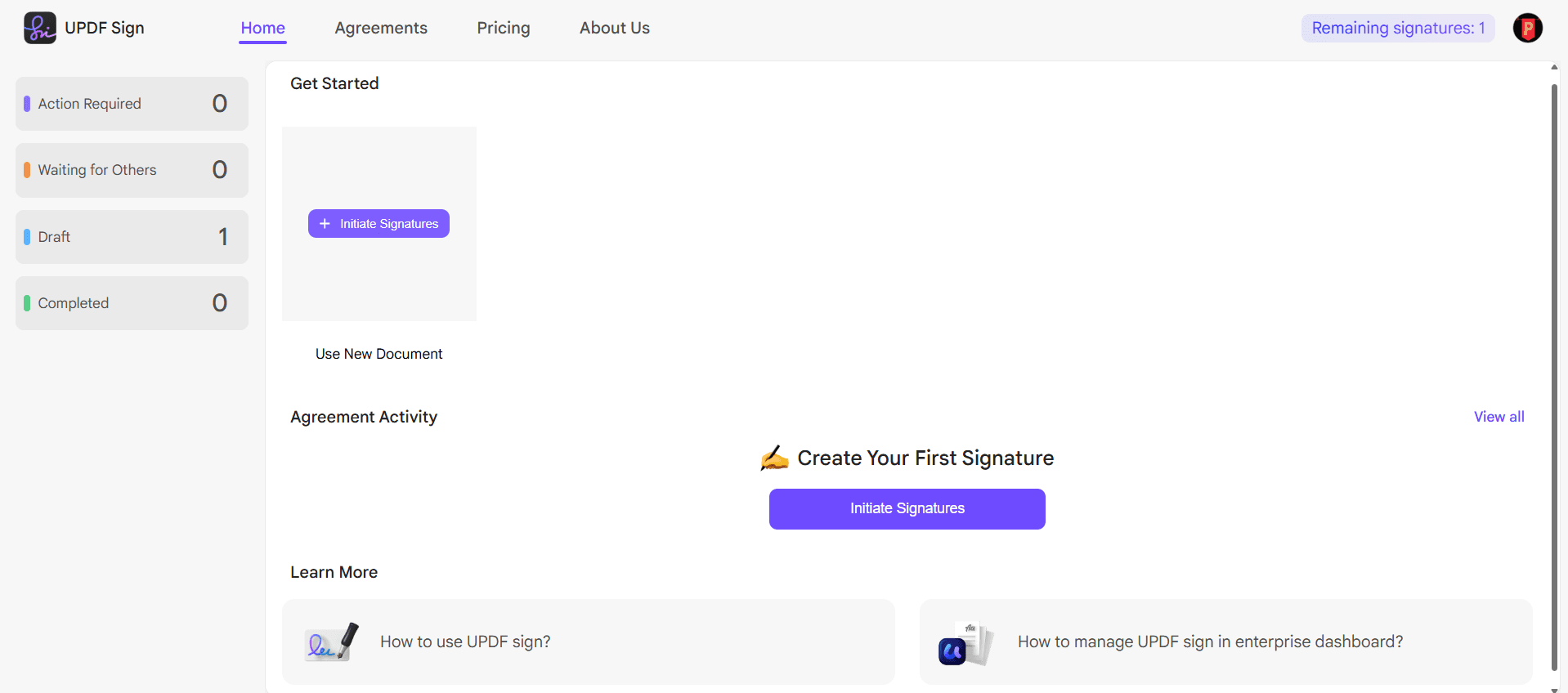
Alt: go-to-updf-sign
2. Add the recipient’s info as needed and click on the continue button.
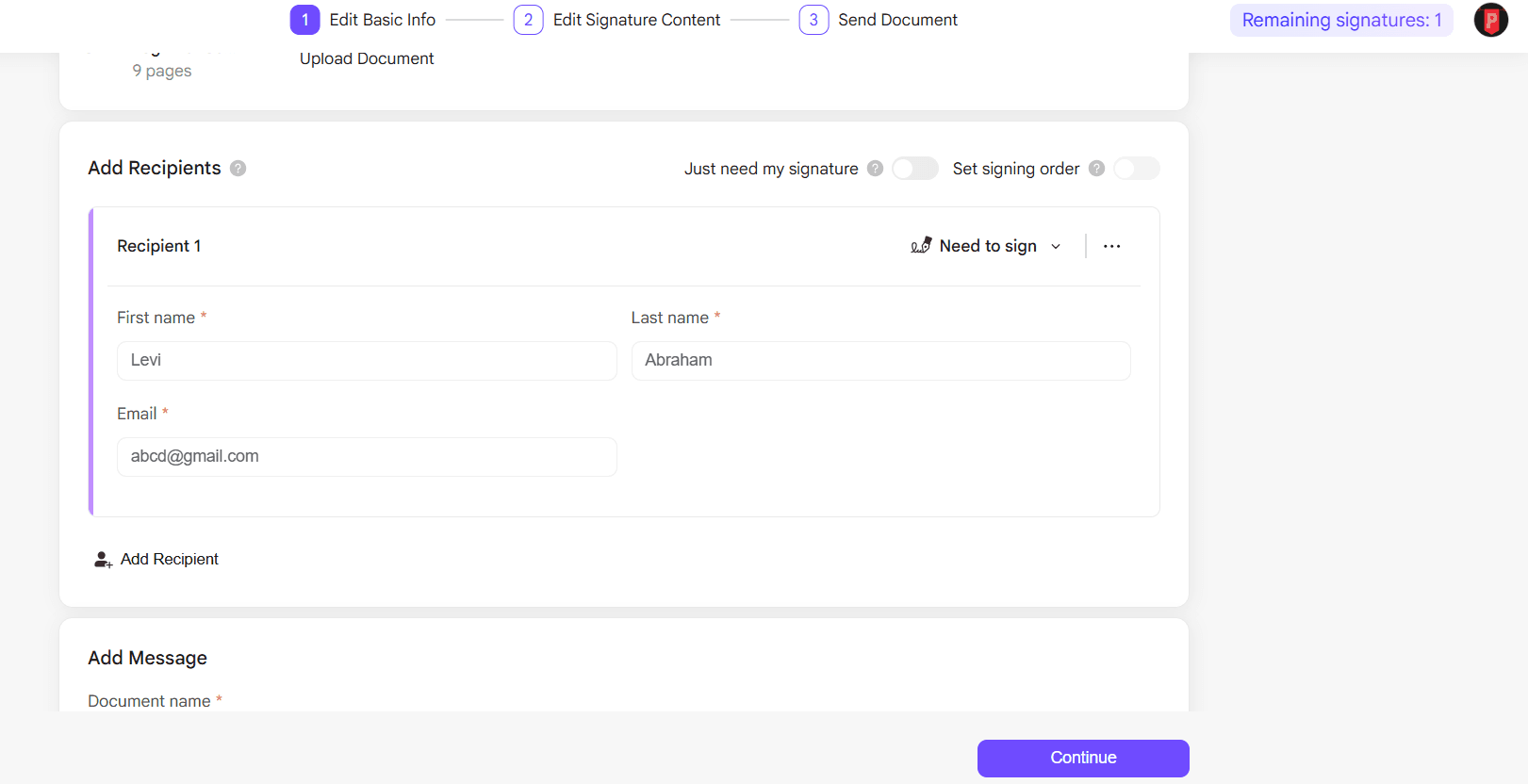
Alt: add-recepients-info
3. Click on the required PAdES signature level.
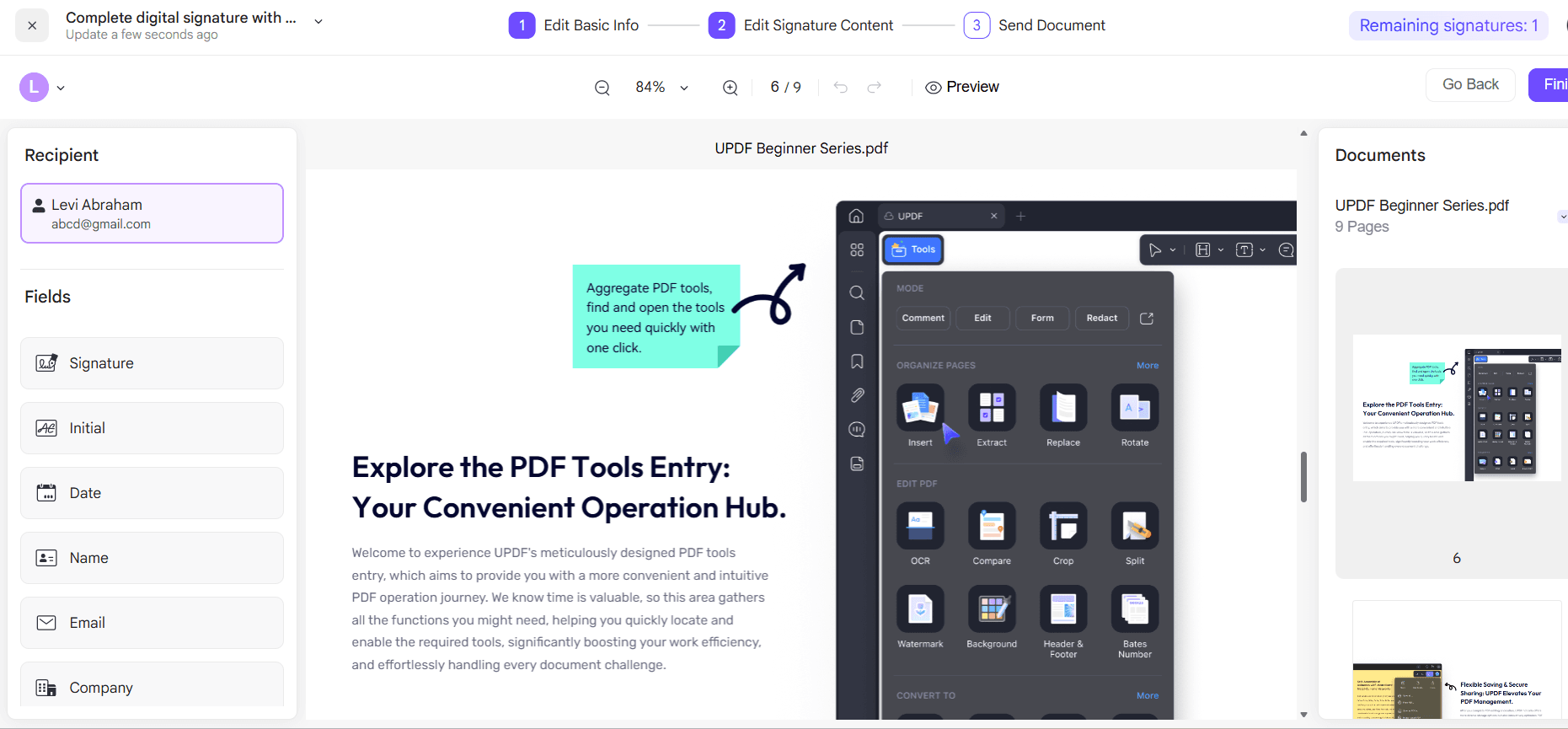
Alt: add-signature-stamp
4. Confirm the recipient and the signature type.
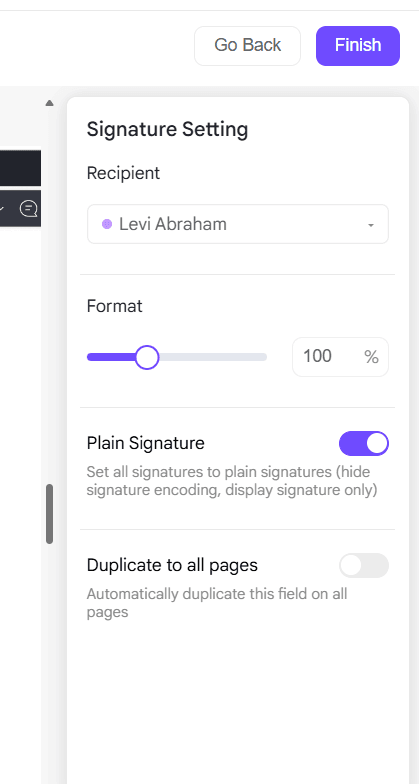
Alt: confirm-if-you-need-a-plain-signature
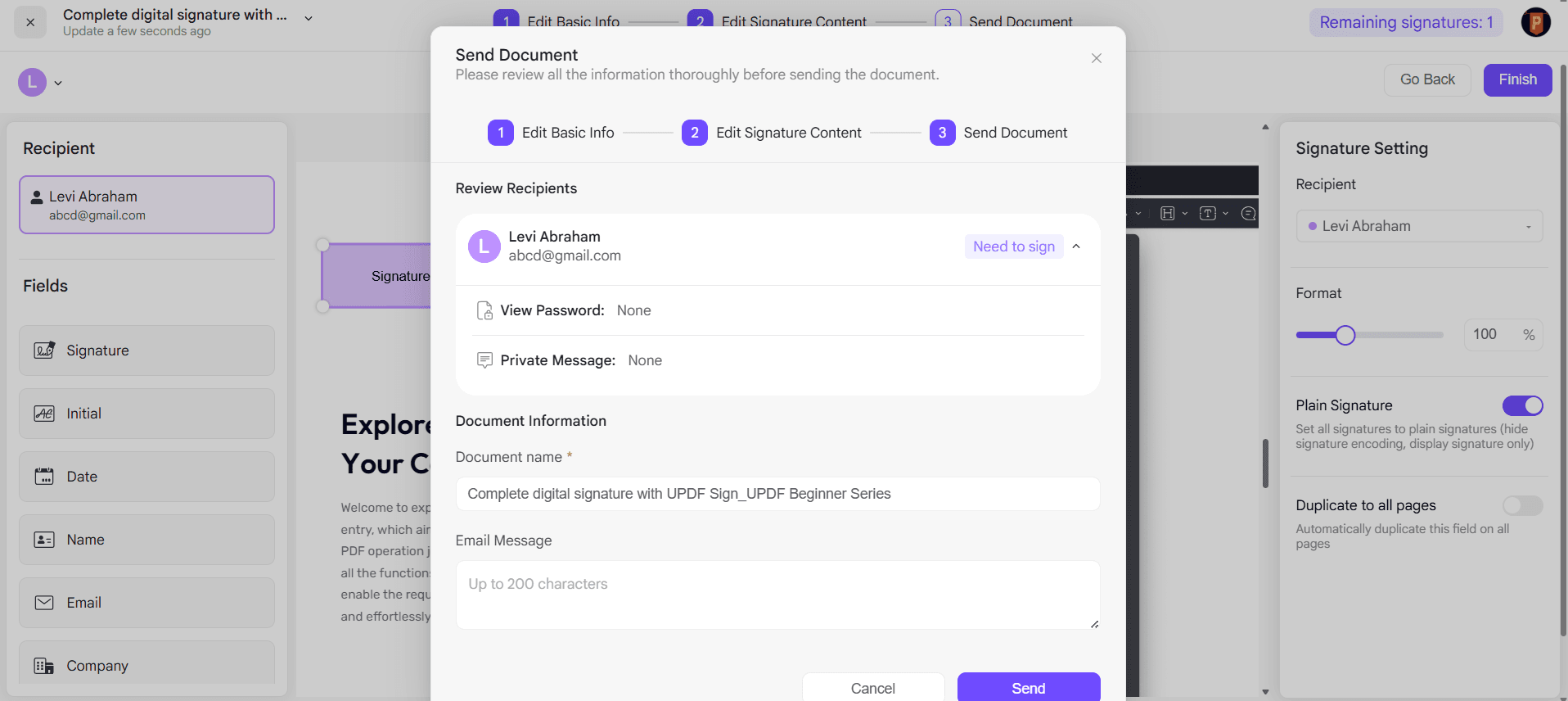
Alt: hit-send
5. Now hit Send to share the file with the recipients.
This preparation step is essential. Once a PAdES signature is applied, the document should be considered locked. Any changes after signing will invalidate the signature and require the process to be repeated.
How I Apply A PAdES Signature Using UPDF Sign
1. Use your browser and visit UPDF Sign.
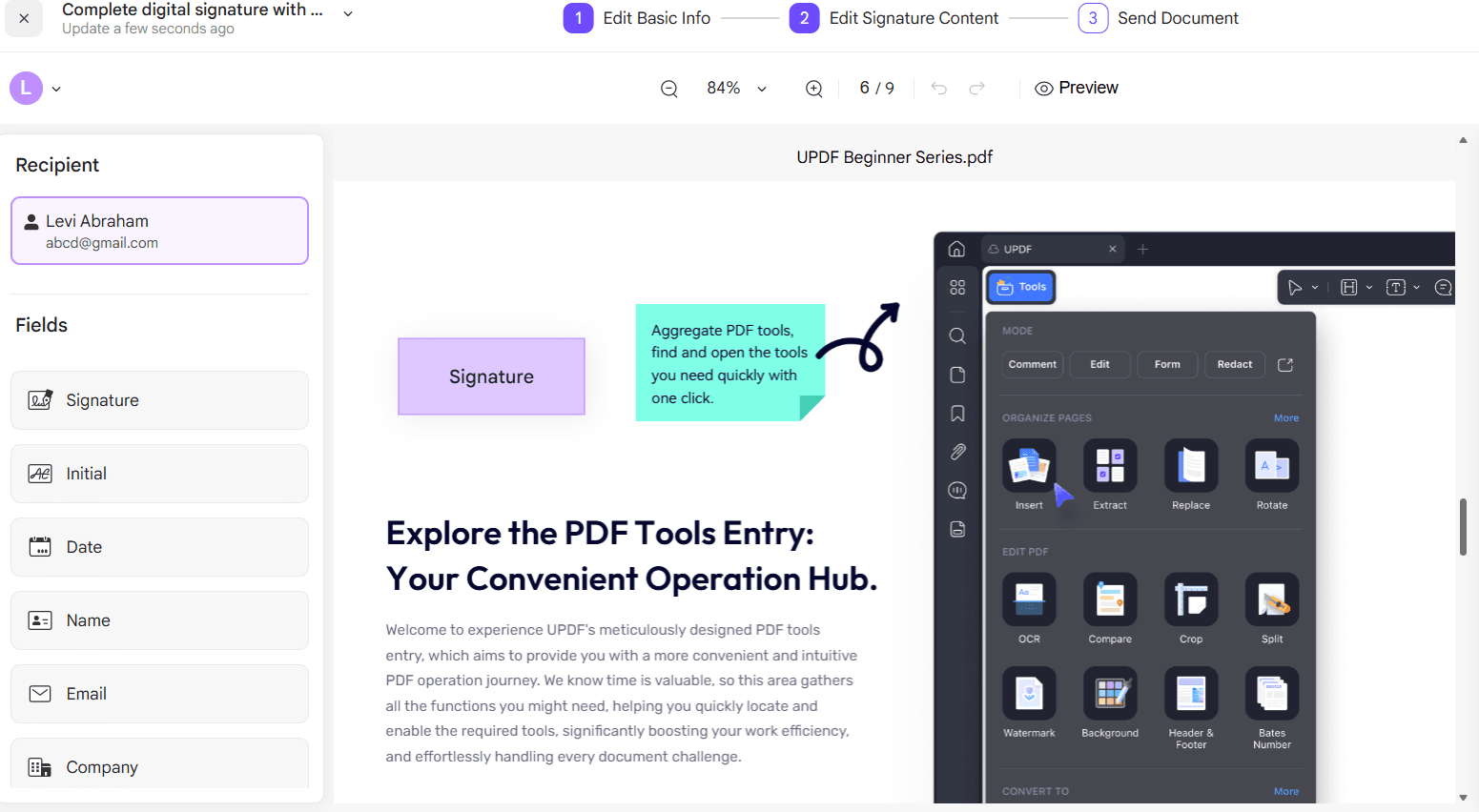
Alt: navigate-to-updf
2. Click on the Signature field where you need to add your signature.
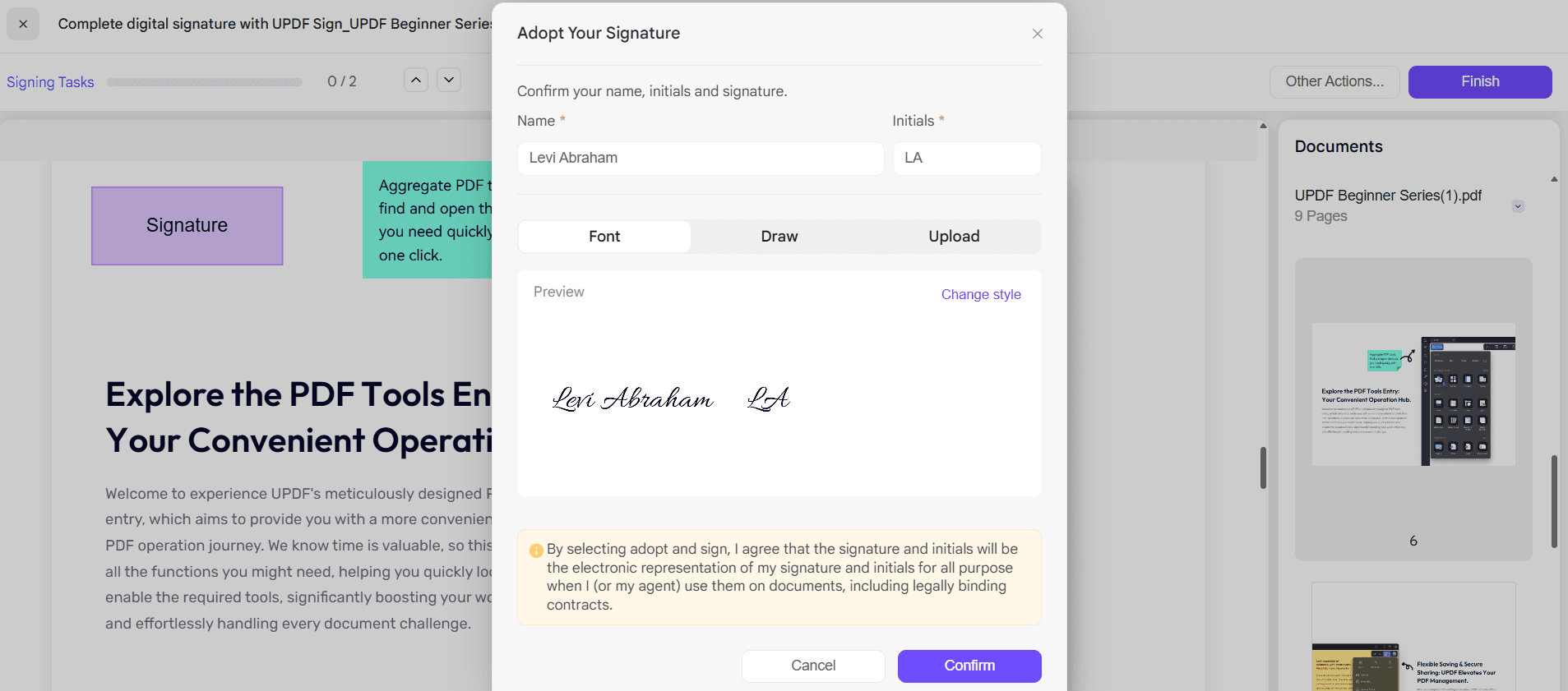
Alt: add-your-sign
3. Confirm your initials, or you can choose the draw and upload option as well.
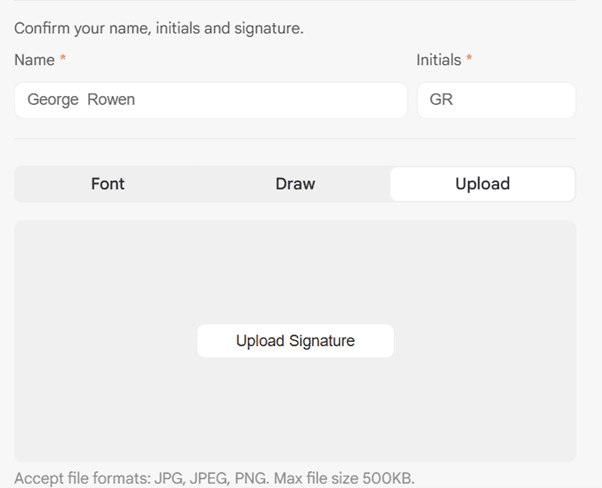
Alt: change-style-as-you-like
4. UPDF also allows you to change the style as you like. When finished, click the Confirm button.
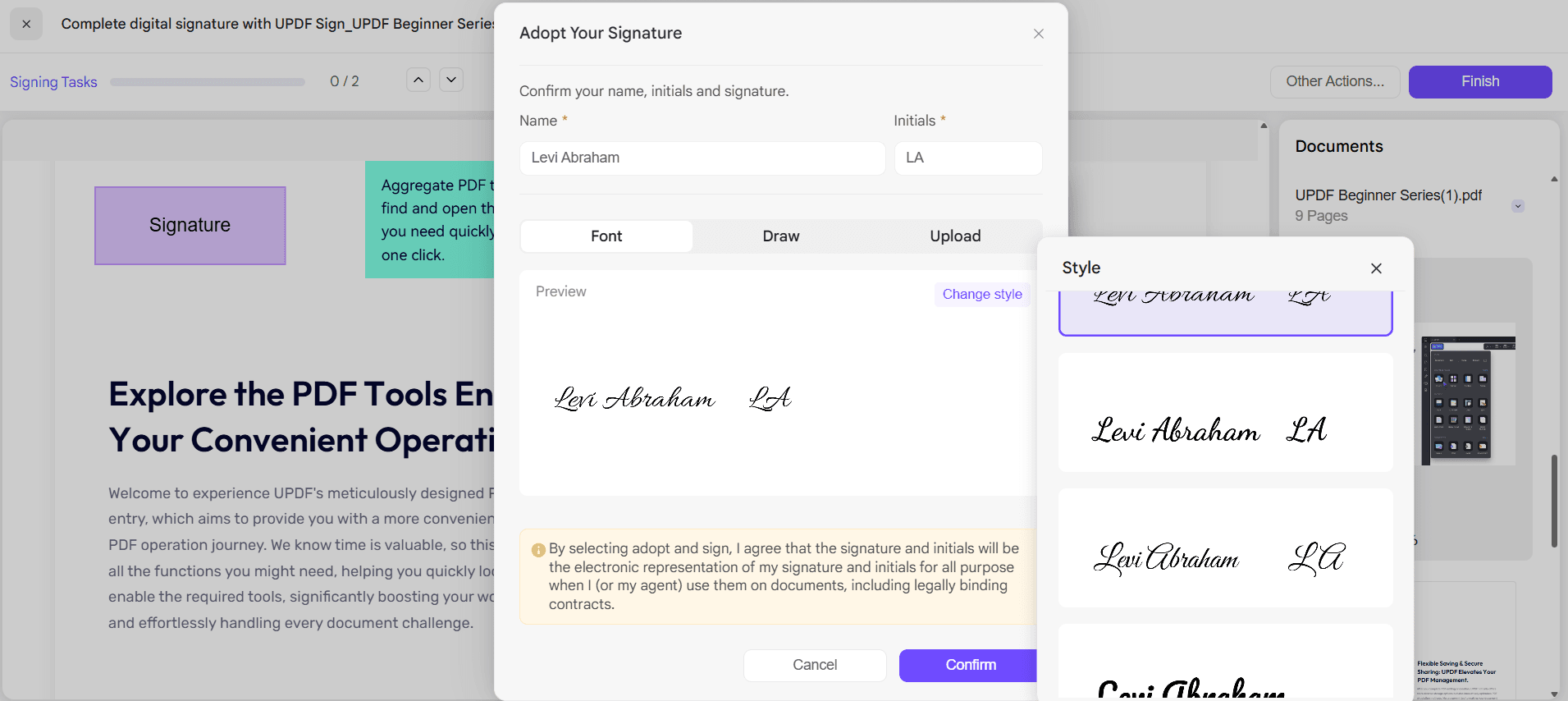
Alt: check-the-final-results
I usually open the signed file once more to check the signature panel and confirm that the validation indicators appear as expected.
When I Don’t Use PAdES
Not every document needs a PAdES signature. For internal approvals, drafts, or short-term agreements, I often use UPDF’s regular signing tools. They’re faster and sufficient when long-term verification is not required. UPDF supports signing across desktop and mobile devices, which helps when documents need a quick turnaround.
Method 2. Using Adobe Acrobat
Adobe Acrobat also supports creating a PAdES PDF, but the process usually involves more configuration. Certificate handling and validation settings can take time to set up correctly. In my experience, Adobe works best for users already familiar with certificate-based signing workflows and existing certificate infrastructure.
How To Check the Validity of PAdES Signatures?
After creating a PAdES signature, I always verify it. Validation confirms that the document meets compliance requirements and that the embedded information is intact.
I typically use the EU DSS Validator for this step.
Here’s the process I follow:
- Go to the EU DSS validation tool.
- Upload the signed PAdES PDF to the validation tool.
- Submit the PDF for analysis.
- Lastly, review the results for trusted timestamps, signature status, and other requirements.
This step helps identify potential issues early, especially before submitting documents to external parties or regulatory bodies.
Wrapping it Up!
Learning about PAdES changed how I think about signed PDFs. A PAdES signature isn’t just about signing a document. It’s about making sure that the document remains trustworthy over time. By using UPDF to prepare files and UPDF Sign to apply compliant signatures, I’ve built a workflow that balances ease of use with long-term reliability. If you regularly work with documents that need lasting validity, creating and verifying a PAdES PDF is a step worth taking.
Recommended Articles
For more on Time Series Analysis, explore these related articles from our Time Series Analysis guide.