


Part of our Data Types in VBA guide
Excel VBA Paste Values
Copy and paste is not the greatest job in the world! But copying and pasting with special options requires some knowledge in VBA. VBA copy and paste is not a straightforward process as a simple copy and paste. One of the important paste special methods is “Paste Values” in VBA.
How to Paste Values in Excel using VBA?
Example #1 – Using Paste Special
Look at the below worksheet image.

In cell B6, we applied the formula to calculate the total sales values from B2 to B5. Therefore, if we copy and paste cell B6 to C6, we will not get the value of 22,761, but we will get the corresponding formula.
To carry out the same thing in VBA, we need coding knowledge. We will show you how to paste values using VBA. Follow the below steps.
Step 1: Copy the cell B6.
To copy cell B6, use the code Range (“B6”).Copy

Step 2: Select the destination cell. In this case, C6 cell.
As you can see after the copy, it asks, “Destination.” It is nothing but where you want to paste, so select the “Destination” as Range (“C6”).
Code:
Sub Paste_Values() Range(“B6”).Copy Range(“C6”) End Sub
Step 3: Run the Code
Run this code we will get the B6 copy in C6.
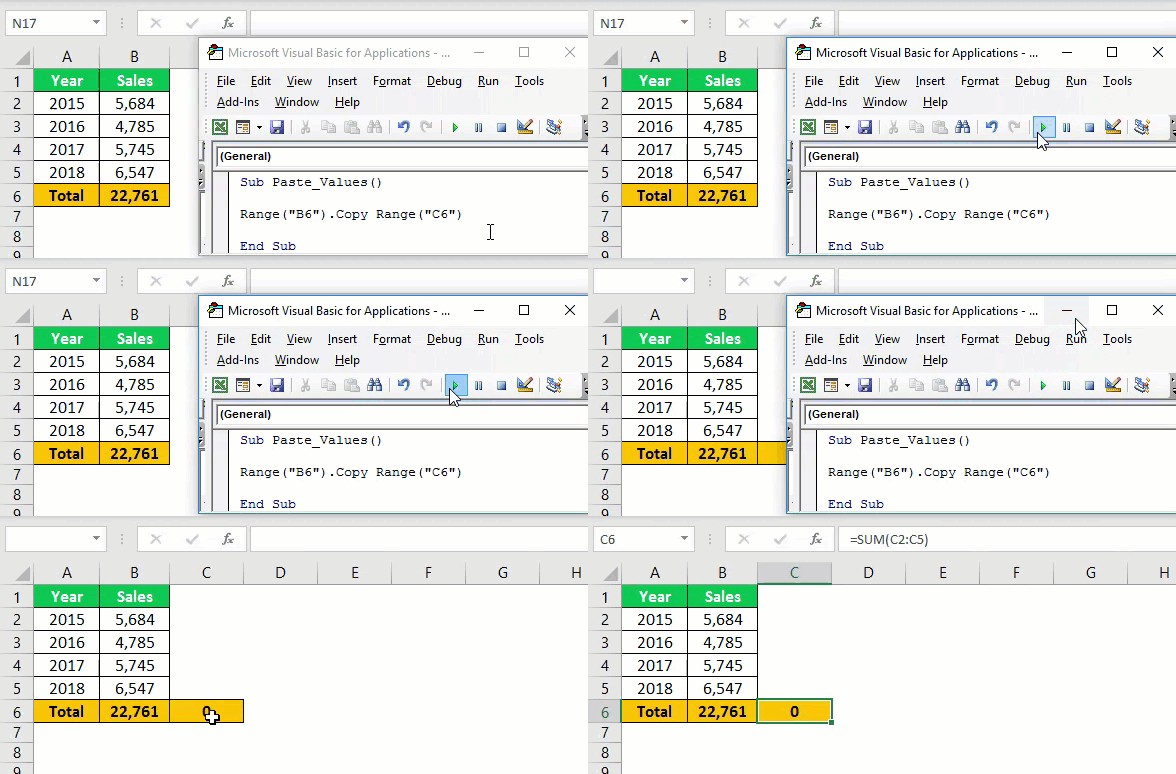
We got only the formula here.
Step 4: Perform a Paste Special Method.
To perform the PasteSpecial method, let us look at the syntax below the PasteSpecial method.

In the PasteSpecial method, we have several methods. First, based on our operation, we must select the type accordingly.
To understand, let us break the code into two lines.
The first one is copying cell B6.

In the next line, write the destination cell as Range (“C6”).

Now, to access the Paste Special method, put a dot and start typing the letter “P.”
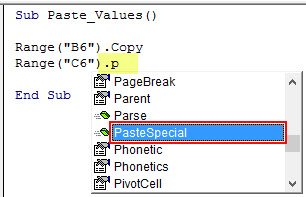
Select the “Paste Special” method in the above variety of options.

After selecting the method, press the space key to see the various Paste Special methods.

In this variety of options, select “xlPasteValues.”
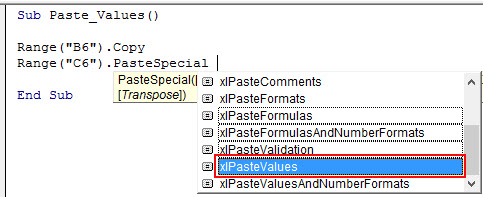
After selecting the option, press the “Tab” key to auto-select.
Code:
Sub Paste_Values()
Range(“B6”).Copy
Range(“C6”).PasteSpecial xlPasteValues
End Sub
Step 5: Run the Code
Now, run the code. We should get only the value of cell B6 to cell C6.
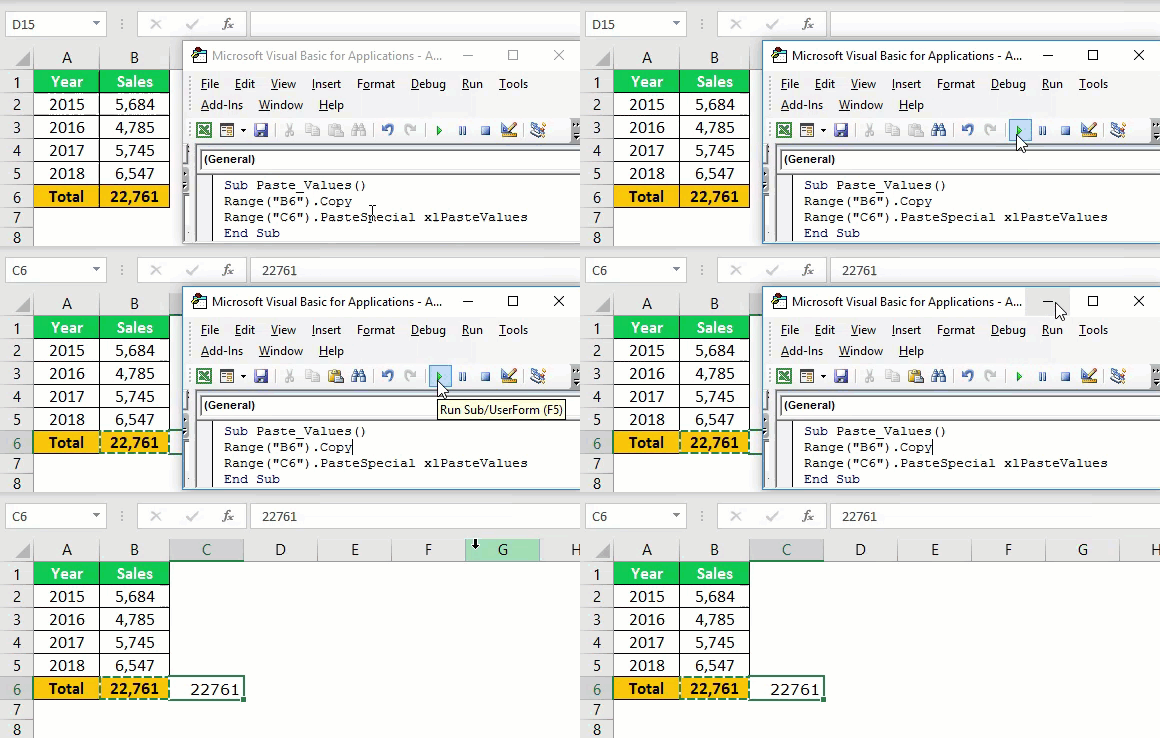
If you notice the worksheet after running the code, it is still in the copy mode.
After executing the Paste Special method, it will disable the cut copy mode.
Example #2 – Paste Special with Loops
Paste Special is easy, but using this as part of a large code requires advanced coding skills.
For example, look at the below image.

In the above image of the worksheet in column “F,” we have a total column, i.e., in F2, F5, F8, F11, and F14 cells.
We must copy each total cell from the respective cell and paste it into the column “H” with the individual cells.
Using the below code with VBA loops, we can do this.
Code:
Sub Paste_Values1() Dim k As Integer Dim j As Integer j = 2 For k = 1 To 5 Cells(j, 6).Copy Cells(j, 8).PasteSpecial xlPasteValues j = j + 3 Next k End Sub
This code with the Paste Special option will perform the task of copying each total cell and pasting in the column “H” with individual cells.

Example #3 – Copy From Worksheet to Another
We need to mention both worksheet names to paste values from one worksheet to another. Below is an example of that.
Sub Paste_Values2() Worksheets(“Sheet1”).Range(“A1”).Copy Worksheets(“Sheet2”).Range(“A15”).PasteSpecial xlPasteValues End Sub
Recommended Articles
This article has been a guide to VBA Paste Values. Here, we discuss the top 3 tips to paste values using the Paste Special method in VBA, along with examples and a downloadable Excel template. Below are some useful Excel articles related to VBA: –