


Bank reconciliation in Excel means putting your bank statement and your cash book side by side in a spreadsheet, ticking off every entry that appears in both, and explaining the ones that don’t. If the balance in your books and the balance on the statement end up agreeing after those explanations, you’re done.
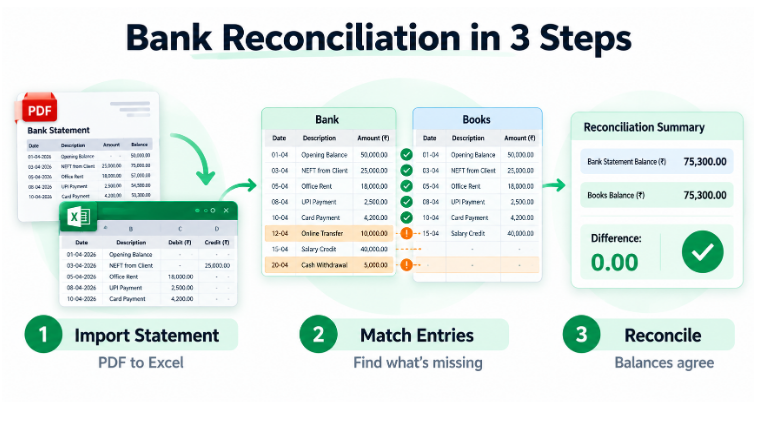
If you’re new to the concept itself, WallStreetMojo’s guide to bank reconciliation covers what it is and why companies do it. This article is the practical part: how to actually do it in Excel, with formulas, a worked example in rupees, and a layout you can copy as a template.
Excel works well for this because you can match hundreds of entries with one formula instead of a pencil and a printout. Once the sheet is set up, a month with a few hundred transactions goes much faster than ticking a printout line by line.
What you need before you start
Get these three things together first, all for the same period:
- The bank statement for the month you’re reconciling, showing the opening and closing balance.
- Your cash book or bank ledger for the same dates, exported from your accounting software or kept in Excel.
- Last month’s reconciliation, if you have one. Cheques you issued last month that still hadn’t cleared will usually show up on this month’s statement, and you need that list to match them.
Check that both records start from the same date. A statement that runs from the 1st to the 30th and a ledger export that stops on the 28th will never reconcile, and you can lose an hour before you notice why.
Step 1: Get the bank statement into Excel
Some banks provide the facility to download the statement from the net banking directly to Excel / CSV format. If you do, then skip ahead to the next section and use that file.
Most people end up with a PDF, however, particularly for older months or for statements sent to a client via email. There’s a lot of time that’s wasted while copying a PDF to Excel by hand, and a lot more time spent on the reconciliation stuff that goes wrong, like typing a 6 as an 8, skipping a row at a page break, or pasting a withdrawal in the deposit column.
A cleaner route is a bank statement PDF to Excel converter that puts the date, description, withdrawal, deposit, and balance into separate columns for you. Whatever method you use, check one thing before moving on: the opening and closing balances in your sheet should match the PDF exactly. If they don’t, a row went missing during conversion, and every step after this will be off.
Step 2: Set up two sheets
Put the bank statement on one sheet and your cash book on another. Name them Bank and Book so the formulas stay readable.
On the Bank sheet, use these columns:
| A | B | C | D | E | F |
| Date | Description | Withdrawal | Deposit | Balance | Status |
On the Book sheet:
| A | B | C | D | E |
| Date | Particular | Payment | Receipt | Status |
Maintain the same orientation of the two sides. A withdrawal is a payment on the bank statement, and a deposit is a receipt. That is the most frequently encountered problem in a match formula: it’s not mixed up the proper way.
Two small clean-up chores prevent big problems later. Ensure that all values are numbers, not text (numbers will align right in the cell, and text will align left). Be careful of dates being dates or being converted as text in an Excel file, and use the same format for dates in the converted file.
Step 3: Match the entries with a formula
In F2 of the Bank sheet, paste this and drag it down:
=IF(C2>0, IF(COUNTIF(Book!C:C,C2)>0,”Matched”,”Not in books”), IF(COUNTIF(Book!D:D,D2)>0,”Matched”,”Not in books”))
It checks if the same amount is in your cash book. If it is, you see “Matched”. If not, “Not in books”.
Do the same in E2 of the Book sheet:
=IF(C2>0, IF(COUNTIF(Bank!C:C,C2)>0,”Matched”,”Not in bank”), IF(COUNTIF(Bank!D:D,D2)>0,”Matched”,”Not in bank”))
Want to see the date of the matching entry in your books? Use this:
=XLOOKUP(C2,Book!C:C,Book!A:A,”Not found”)
Watch out for repeat amounts. If two ₹5,000 payments hit the bank but only one is in your books, both still show “Matched”. This formula catches it:
=IF(COUNTIF(Book!C:C,C2)>=COUNTIF(Bank!C:C,C2),”OK”,”Check duplicates”)
For rent, salaries or EMIs that repeat every month, add a cheque or reference number column and match on that too.
Then filter the Status column. Anything not marked “Matched” is what you work on next.
Step 4: Sort out what didn’t match
The unmatched rows fall into two groups, and they’re handled differently.
In your books but not on the bank statement. These are timing differences. The entry is correct; the bank just hasn’t caught up yet:
- Cheques you issued that the payee hasn’t deposited (uncleared or unpresented cheques)
- Cash or checks you deposited near month-end that the bank credits in the next few days (deposits in transit)
You don’t change your books for these. They go on the reconciliation statement in Step 5, and you tick them off when they appear on next month’s statement.
On the bank statement but not in your books. These are usually things the bank did that nobody recorded yet:
- Bank charges, SMS fees, and GST on charges
- Interest credited
- Customer payments received directly by NEFT, RTGS, or UPI
- EMIs and other auto-debits
- Cheques you deposited that bounced
These do need entries in your books. Once you post them, the cash book balance moves closer to the bank balance.
If your books are in Tally, typing these one by one gets tiring fast, especially in a month with fifty small UPI receipts. A PDF to Tally XML converter, or any tool that sends bank entries straight into Tally, brings the statement in as vouchers, so you only check the ledgers and accept the entries that are missing.
Some of these tools also assist in the reconciliation within Tally. Once the statement is in, they fill in the bank date on each matching voucher that Tally’s bank reconciliation screen operates on, and they then skip any statement that you have already imported to get rid of any duplicate postings. Everything else on the screen has no match and is the same as the items listed above.
In some cases, neither group provides an explanation of a row, and it is a simple error, such as entering ₹4,850 as ₹4,580 in the books. Update the book entry and match statistics.
Step 5: Prepare the reconciliation statement
Add a third sheet called Recon. Start from the bank balance and adjust it for the timing differences from Step 4:
| A | B | |
| 2 | Balance as per bank statement | (type the closing balance) |
| 3 | Add: Deposits in transit | =SUMIFS(Book!D:D,Book!E:E,”Not in bank”) |
| 4 | Less: Uncleared cheques | =SUMIFS(Book!C:C,Book!E:E,”Not in bank”) |
| 5 | Adjusted bank balance | =B2+B3-B4 |
| 6 | Balance as per cash book (after Step 4 entries) | (type or link the closing balance) |
| 7 | Difference | =B5-B6 |
B7 should be zero. If it isn’t, go back to the unmatched list. The usual suspects are an entry posted twice, a bank charge you missed, or a withdrawal sitting in the deposit column.
The closing balance in B6 is the cash figure that goes into your balance sheet. Giving an accurate picture of the company’s current position, cash included, is one of the main objectives of financial statements, and an unreconciled bank account is one of the easiest ways to miss it.
Worked example
A small trading firm closes March 2026 with these two balances:
- Cash book: ₹1,42,500
- Bank statement: ₹1,58,300
The matching formulas leave five rows unmatched:
| Item | Amount (₹) | Where it shows | What to do |
| Cheque to supplier, issued 29 March, not yet presented | 22,000 | Books only | Show on reconciliation |
| Cheque deposited 31 March, credited by bank on 2 April | 15,000 | Books only | Show on reconciliation |
| Bank charges including GST | 350 | Bank only | Enter in cash book |
| Interest credited by the bank | 1,150 | Bank only | Enter in cash book |
| Customer payment received by NEFT | 8,000 | Bank only | Enter in cash book |
First, post the three bank-only items to the cash book:
₹1,42,500 + ₹1,150 + ₹8,000 − ₹350 = ₹1,51,300
Then build the reconciliation statement from the bank side:
| Amount (₹) | |
| Balance as per bank statement | 1,58,300 |
| Add: Deposit in transit | 15,000 |
| Less: Uncleared cheque | 22,000 |
| Adjusted bank balance | 151,300 |
| Balance as per cash book (updated) | 1,51,300 |
| Difference | 0 |
Both sides agree at ₹151,300, so March is reconciled. In April, the ₹15,000 deposit and the ₹22,000 cheque should both appear on the statement. If the check still hasn’t cleared after a couple of months, it’s worth calling the supplier to find out why.
Free template: The layout to copy
You can build a reusable template in about ten minutes from the steps above. Set it up once, save it as a blank file, and each month you only paste in new data.
- Bank sheet: Date, Description, Withdrawal, Deposit, Balance, Status (the Step 3 formula filled down to row 1000 or so)
- Book sheet: Date, Particulars, Payment, Receipt, Status (the mirror formula, filled down the same way)
- Recon sheet: the six-row statement from Step 5, with the SUMIFS formulas already in place
- Carried forward sheet: a short list of uncleared checks and deposits in transit from last month, so you can tick them off when they clear
Two things make the template easier to live with. Turn both data ranges into Excel tables (Ctrl+T), so formulas extend on their own when you paste more rows. And add conditional formatting to the Status columns, so anything that isn’t “Matched” shows up in red the moment you paste the data.
Mistakes that throw the balance off
Most reconciliations that won’t close come down to a handful of causes:
Date format mix-ups. 05/04/2026 translates to 4 May, which will cause an entry to be mistakenly placed in the wrong month. Review some dates following each import.
The data stored as a text field. The formula COUNTIF does not match “5,000” with 5,000. Use Text to Columns or VALUE to convert the column that contains the text.
Items that were not used last month. Items that were not used last month. If you don’t carry forward an uncleared check from February that has been cleared in March, it looks like an unexplained withdrawal.
Double-posting bank charges. If charges are already posted from an SMS alert, then they will be doubled if reposted from the statement.
Transposed digits. If the difference of B7 is divisible by 9, find two swapped digits, e.g. 4,850 – 4,580 = 270.
Frequently Asked Questions
How often should I reconcile my bank account?
At least once a month, right after the statement period closes. Busy accounts with daily UPI receipts are easier to handle weekly, because the unmatched list stays short. For a small business, a cash balance you can trust is also the starting point for any kind of financial planning, from deciding on a purchase to setting a budget for next quarter. Does Excel reconcile automatically? Partly. The formulas above do the matching for you, but someone needs to determine what each unmatched item is and to post the missing entries. That’s the judgment that counts. I have balanced my bank statement with my cash book, and my balance doesn’t match. Why is that? Always check the Difference cell first. If it is not zero, then check for an amount that was double posted, an item that was not carried forward, or a date that is in the wrong month. If the difference is divisible by 9, then it is likely that it is a digit swap. Shall I use the downloadable Excel file from the bank, or should I convert the PDF? Take advantage of the bank’s download when available for the duration required. If you only have the PDF, then convert it, which is common for older statements and any statements that clients email you. Regardless, make sure that the opening and closing balances are the same as in the original before you begin matching.