


Part of our String Functions in VBA guide
Excel VBA String Comparison
We have a built-in function to compare two strings in VBA: “StrComp.” We can read it as “String Comparison.” This function is available only with VBA and not as a Worksheet function. It compares any two strings and returns the results as “Zero (0)” if both strings match. We will get “One (1)” if both supplied strings do not match.
In VBA or Excel, we face plenty of different scenarios. One such scenario is comparing two string values. Of course, we can do these in a regular worksheet multiple ways, but how do you do this in VBA?
Below is the syntax of the “StrComp” function.

First, two arguments are quite simple.
- For String 1, we need to supply the first value we are comparing.
- For String 2, we need to supply the second value we are comparing.
- [Compare] this is the optional argument of the StrComp function. It is helpful when we want to compare case-sensitive comparisons. For example, in this argument, “Excel” is not equal to “EXCEL” because both these words are case sensitive.
We can supply three values here.
- Zero (0) for “Binary Compare,” i.e., “Excel,” is not equal to “EXCEL.” For case-sensitive comparison, we can supply 0.
- One (1) for “Text Compare,” i.e., “Excel,” is equal to “EXCEL.” It is a non-case-sensitive comparison.
- Two (2) this only for database comparison.
The results of the “StrComp” function do not default TRUE or FALSE but vary. Below are the different results of the “StrComp” function.
- We will get “0” if the supplied strings match.
- We will get “1” if the supplied strings are not matching. In the case of numerical matching, we will get 1 if String 1 is greater than string 2.
- We will get “-1” if the string 1 number is less than the string 2 number.
How to Perform String Comparison in VBA?
Example #1
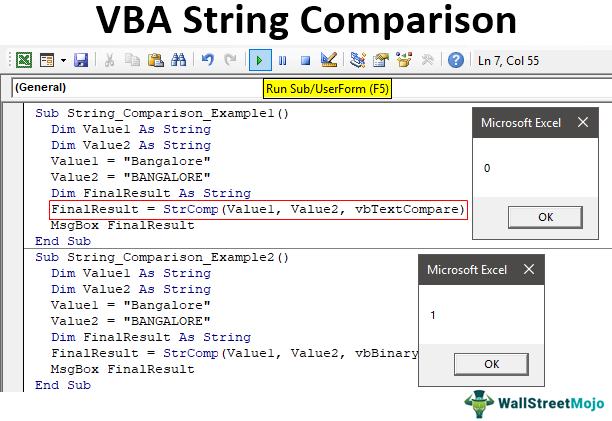
We will match “Bangalore” against the string “BANGALORE.”
But, first, declare two VBA variables as the string to store two string values.
Code:
Sub String_Comparison_Example1()
Dim Value1 As String
Dim Value2 As String
End Sub
For these two variables, store two string values.
Code:
Sub String_Comparison_Example1()
Dim Value1 As String
Dim Value2 As String
Value1 = “Bangalore”
Value2 = “BANGALORE”
End Sub
Now, declare one more variable to store the result of the “StrComp” function.
Code:
Sub String_Comparison_Example1()
Dim Value1 As String
Dim Value2 As String
Value1 = “Bangalore”
Value2 = “BANGALORE”
Dim FinalResult As String
End Sub
For this variable, open the “StrComp” function.
Code:
Sub String_Comparison_Example1()
Dim Value1 As String
Dim Value2 As String
Value1 = “Bangalore”
Value2 = “BANGALORE”
Dim FinalResult As String
FinalResult = StrComp(
End Sub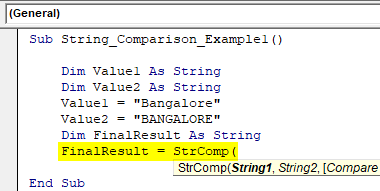
We have already assigned values through variables for “String1” and “String2,” so enter variable names, respectively.
Code:
Sub String_Comparison_Example1()
Dim Value1 As String
Dim Value2 As String
Value1 = “Bangalore”
Value2 = “BANGALORE”
Dim FinalResult As String
FinalResult = StrComp(Value1, Value2,
End Sub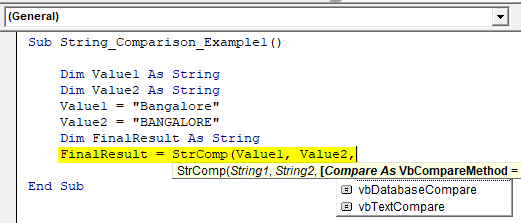
The last part of the function is “Compare” for this choice “vbTextCompare.”
Code:
Sub String_Comparison_Example1()
Dim Value1 As String
Dim Value2 As String
Value1 = “Bangalore”
Value2 = “BANGALORE”
Dim FinalResult As String
FinalResult = StrComp(Value1, Value2, vbTextCompare)
End Sub
Now show the “Final Result” variable in the message box in VBA.
Code:
Sub String_Comparison_Example1()
Dim Value1 As String
Dim Value2 As String
Value1 = “Bangalore”
Value2 = “BANGALORE”
Dim FinalResult As String
FinalResult = StrComp(Value1, Value2, vbTextCompare)
MsgBox FinalResult
End Sub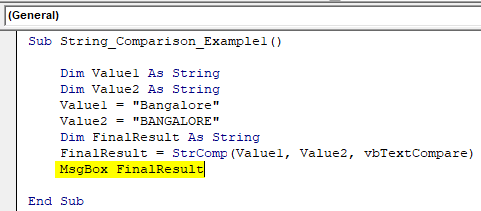
Let us run the code and see the result.
Output:
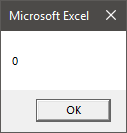
Since the strings “Bangalore” and “BANGALORE” are the same, we got the result as 0, i.e., matching. However, both the values are case-sensitive since we have supplied the argument as “vbTextCompare,” it has ignored the case-sensitive match and matched only values, so both the values are the same, and the result is 0, i.e., TRUE.
Code:
Sub String_Comparison_Example1()
Dim Value1 As String
Dim Value2 As String
Value1 = “Bangalore”
Value2 = “BANGALORE”
Dim FinalResult As String
FinalResult = StrComp(Value1, Value2, vbTextCompare)
MsgBox FinalResult
End Sub
Example #2
We will change the compare method for the same code from “vbTextCompare” to “vbBinaryCompare.”
Code:
Sub String_Comparison_Example2()
Dim Value1 As String
Dim Value2 As String
Value1 = “Bangalore”
Value2 = “BANGALORE”
Dim FinalResult As String
FinalResult = StrComp(Value1, Value2, vbBinaryCompare)
MsgBox FinalResult
End Sub
Now, run the code and see the result.
Output:

Even though both the strings are the same, we got the result as 1, i.e., not matching because we have applied the compare method as “vbBinaryCompare,” which compares two values as case sensitive.
Example #3
Now, we will see how to compare numerical values. For the same code, we will assign different values.
Code:
Sub String_Comparison_Example3()
Dim Value1 As String
Dim Value2 As String
Value1 = 500
Value2 = 500
Dim FinalResult As String
FinalResult = StrComp(Value1, Value2, vbBinaryCompare)
MsgBox FinalResult
End Sub
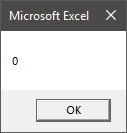
Both the values are 500. Therefore, we will get 0 as a result because both the values match.
Output:
Now, we will change the Value1 number from 500 to 100.
Code:
Sub String_Comparison_Example3()
Dim Value1 As String
Dim Value2 As String
Value1 = 1000
Value2 = 500
Dim FinalResult As String
FinalResult = StrComp(Value1, Value2, vbBinaryCompare)
MsgBox FinalResult
End Sub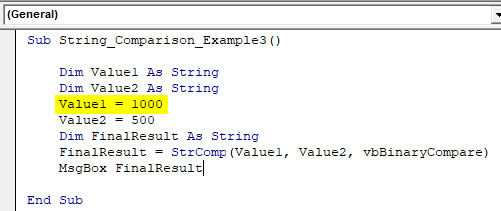
Run the code and see the result.
Output:
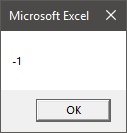
We know Value1 and Value2 are not the same. But the result is -1 instead of 1 because for numerical comparison, when the String 1 value is greater than String 2, we will get this -1.
Code:
Sub String_Comparison_Example3()
Dim Value1 As String
Dim Value2 As String
Value1 = 1000
Value2 = 500
Dim FinalResult As String
FinalResult = StrComp(Value1, Value2, vbBinaryCompare)
MsgBox FinalResult
End Sub
Now, we will reverse the values.
Code:
Sub String_Comparison_Example3()
Dim Value1 As String
Dim Value2 As String
Value1 = 500
Value2 = 1000
Dim FinalResult As String
FinalResult = StrComp(Value1, Value2, vbBinaryCompare)
MsgBox FinalResult
End Sub
Run the code and see the result.
Output:
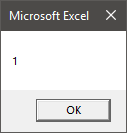
It is not special. If it does not match, we will get only 1.
Things to Remember here
- [Compare] argument of “StrComp” is optional, but in case of case sensitive match, we can utilize this, and the option is “vbBinaryCompare.”
- The result of numerical values is slightly different if String 1 is greater than string 2, and the result will be -1.
- The results are 0 if matched and 1 if not matched.
Recommended Articles
This article has been a guide to the VBA string comparison. Here, we discuss comparing two string values using the StrComp function in Excel VBA and examples and downloading an Excel template. You may also have a look at other articles related to Excel VBA: –