


Part of our Data Types in VBA guide
VBA Enumerations (Enum)
We usually declare variables and assign data types to them. We use common data types: Integer, Long, Single, Double, Variant, and String. But, we have one more data type, VBA “Enum.” You must think about what this is and looks like a strange thing. But to clear all your doubts, we are presenting this article on “VBA Enumerations.”
VBA%20Enum%20Excel%20Template
Download Excel TemplateWhat is VBA Enum?
“Enum” means enumerations. Enum is a variable type just like our string, integer, or any other data type, but here we create a list element using the Excel VBA Enum statement. Enumeration means “the action of mentioning several things one by one.”
In Excel, VBA Enum is a type that contains an enumeration of constants. Enumerations create a list of items and make them in a group. For example, types of mobiles: Redmi, Samsung, Apple, Vivo, Oppo.
Using enumerations, we can group all of them under a single value. For example, one can use the Enum as a variable in VBA, a numeric variable data type of Long.
The formula of VBA Enum
If you do not understand anything, do not worry. You will slowly get the hang of it. Now, take a look at the formula of VBA Enum.
Enum GroupName

     Member1 = [Long]
     Member2 = [Long]
     Member3 = [Long]
     Member4 = [Long]
     Member5 = [Long]

End Enum
As we said in the beginning, one can use Enum as a variable, the numeric variable data type of Long.
Examples of VBA Enum
Before we start the Enum examples, let us show you the “Constant” example in VBA. Constant is also a word used to declare the variable in VBA.
Look at the below codes.
Code:
Const Samsung = 15000
Const VIVO = 18000
Const Redmi = 8500
Const Oppo = 18500
Sub Enum_Example1()
End Sub
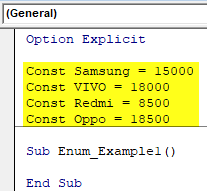
We have declared the variables at the top of the module by using the Const word.
Const Samsung = 15000
Const VIVO = 18000
Const Redmi = 8500
Const Oppo = 18500
Now, we know all these variables are group members of mobile. So, if we want to use these variables, let us say “Vivo” in the module.
Code:
Sub Enum_Example1()

 V

End Sub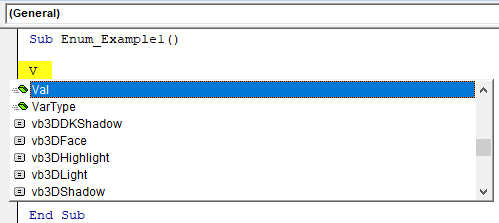
As we start with the character “V,” we can see many other things of VBA mixed up with them, starting with the letter “V.”
It is where the picture of VBA “Enumerations” comes into the picture.
For better understanding, let us try to change the cell’s background color.
Code:
Sub Enum_Example1()

  AcriveCell.Interior.Color = RGB

End Sub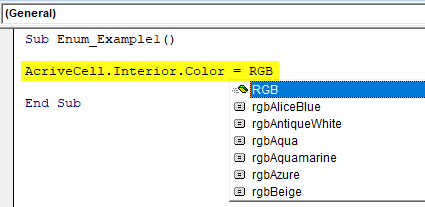
As you can see in the above code, we can see all the RGB colors available in VBA. These are all constants with wonderful names with them.
All these RGB colors are part of the family enumeration called “xlRGBColor.”
Code:
Sub Enum_Example1()

  AcriveCell.Interior.Color = xlrg

End Sub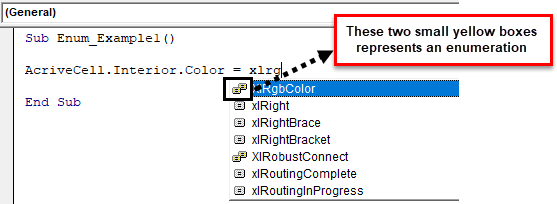
Using these VBA enumerations, we can access this enumeration’s group members.
Code:
Sub Enum_Example1()

  AcriveCell.Interior.Color = XlRgbColor.

End Sub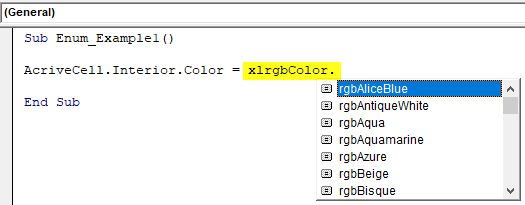
As we can see in the above image, we see only color combinations, nothing else. It is a simple overview of the “VBA Enum.”
We will go back to our original example of mobile group members. Like how we have seen group members of RGB color similarly, we can declare the variables using the VBA Enum statement.
Code:
Enum Mobiles
   Samsung = 15000
   VIVO = 18000
   Redmi = 8500
   Oppo = 18500
End Enum

Sub Enum_Example1()

End Sub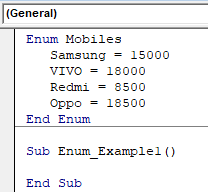
We have now declared all the mobile brands under the “Mobiles” group using “Enum” statements.
Using the group name “Mobiles,” we can now access all these brands in the module.
Code:
Enum Mobiles
   Samsung = 15000
   VIVO = 18000
   Redmi = 8500
   Oppo = 18500
End Enum

Sub Enum_Example1()

  Mob

End Sub
Select the group and put a dot to see all the group members.
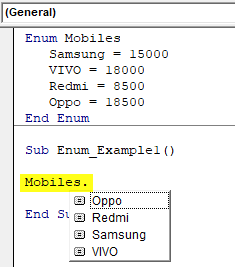
We can see only the group members’ “Mobiles” and nothing else. That is how we can use VBA enumerations to group a list of items under one roof.
Using VBA Enumeration Variables to Store the Data
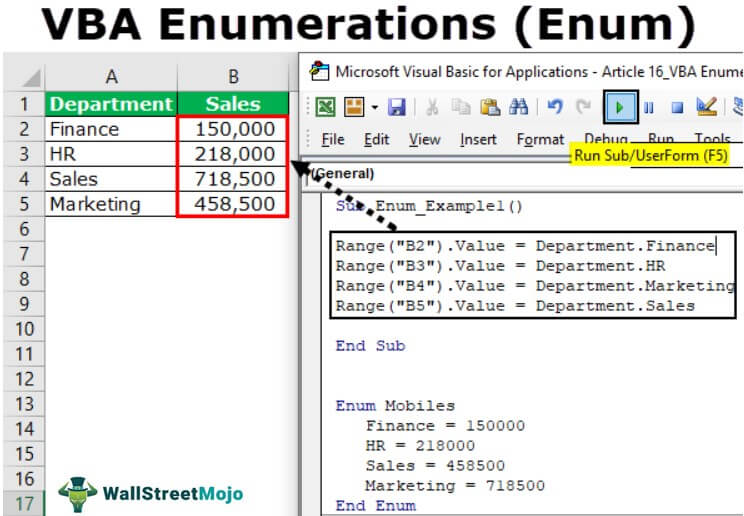
Let us see a simple example of using declared Enum variables. First, declare the Enum group name as “Department” and add the department’s names as the group member.
Code:
Enum Mobiles
   Finance = 150000
   HR = 218000
   Sales = 458500
   Marketing = 718500
End Enum

Sub Enum_Example1()

End Sub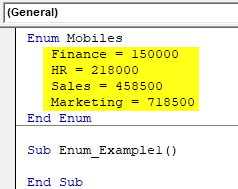
We have declared each department’s salary numbers in front of them.
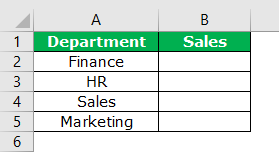
Now, we will store the values of these numbers in an Excel sheet. Before applying the code, create a table like the one below.
Now, go back to the basic visual editor and refer the cell B2 using the RANGE object.
Code:
Sub Enum_Example1()

  Range("B2").Value =

End Sub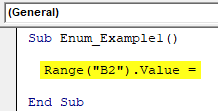
In the A2 cell, we have the “Finance” department, so in the B2 cell, we will store the department’s salary. So first, access the group name “Department.”
Code:
Sub Enum_Example1()

  Range("B2").Value = Dep

End Sub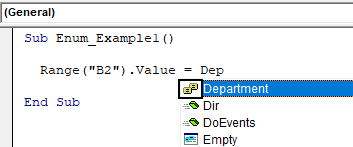
Now in this group, we can see only declared department names.
Code:
Sub Enum_Example1()

  Range("B2").Value = Department.

End Sub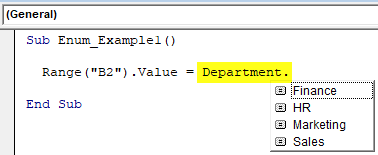
Select the department named “Finance.”
Code:
Sub Enum_Example1()

  Range("B2").Value = Department.Finance

End Sub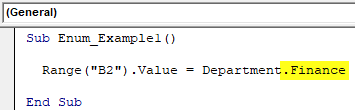
Similarly, for all the other cells, select the respective department names.
Code:
Sub Enum_Example1()

  Range("B2").Value = Department.Finance
  Range("B3").Value = Department.HR
  Range("B4").Value = Department.Marketing
  Range("B5").Value = Department.Sales

End Sub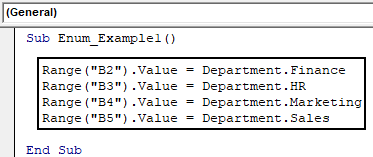
Run this VBA code to get the assigned salary amount for these departments.

It is how we can use VBA Enum.
You can download this VBA Enum Excel here. VBA Enum Excel Template
Recommended Articles
This article is a guide to what is VBA Enum (Enumerations). Here, we discuss how we can use VBA Enum along with examples and download an Excel template. Below are some useful Excel articles related to VBA: –