


Part of our Excel Basics guide
What Is Excel Not Responding Error?
Excel Not Responding Error occurs when the Excel we are working on stops working or responding. We are unable to work on the workbook, unable to enter any values, not able to close or restart the application, etc. In such scenarios, we cannot do much than force shout down the app using the “Task Manager”.
For example, when we face issues with Excel, we get the error shown in the image below.
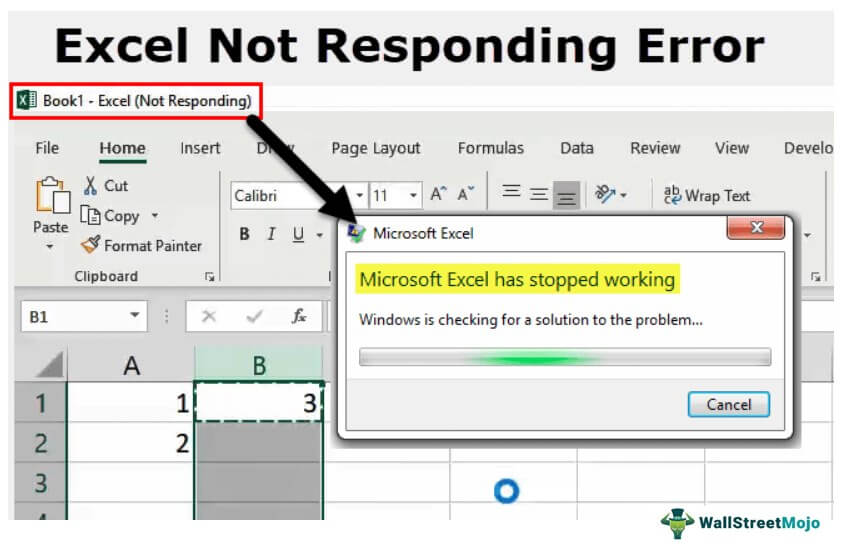
- The Excel Not Responding error occurs due to various reasons, such as system hanging, formulas not working, multiple sheets opened and worked simultaneously, etc.
- We may fix the problems by basic troubleshooting, such as closing and reopening the application, clicking the ESC key, checking the network connection, or pressing the UNDO button to undo the last action that caused the error.
- If the basic troubleshooting doesn’t fix the issue, we can try more advanced solutions discussed in the article, such as checking the Anti-virus software and updating or reinstalling it, checking the default printer settings, updating the Excel app, etc.
- If nothing works, we can always repair or reinstall the Excel application, which fixes all the Excel error issues.
Why Do Excel Not Responding Error Occur?
A few reasons the Excel Not Responding Error may occur are,
- The Excel application software may be corrupted or not updated.
- There may be internet issues, or affected by Malware.
- The system hangs due to some other application issues.
The possible solutions to fix the Excel Not Responding Error are,
- Changing the Default Printer.
- Update Excel.
- Re-install or Repair Excel.
- Re-Install Anti-Virus.
#1 Changing the Default Printer
It is one of the easiest solutions to fix this error. Whenever we reopen Excel, it checks for default printers because Excel concentrates on printers. So, whenever this issue arises, we can change the default printer.
The steps to change the default printer are,
- Step 1: First, we must press the Windows button + R to open the run command, and type the “Control Panel” to open the “Control Panel”.
- Step 2: In the “Control Panel” window, go to “Devices and Printers”. There, we have an option for “Microsoft Document XPS Writer.”
- Step 3: Then, right-click on it and set it as the default printer.
#2 Update Excel
One of the other reasons we get the “Excel Not Responding Error” is that our Excel version is not up to date. To fix this error, we can check for current updates available.
The steps to check for updates are:
- Step 1: First,in an open workbook,besides the “Home” tab, go to the “File” tab, and choose the option “Account”.
- Step 2: In “Account,” we can see product information, and if Excel is not updated, we can find updates in “Update Options”.
- Step 3: Update Excel, and this may fix the error.
#3 Re-install or Repair Excel
In the “Control Panel”, from “Uninstall or change a program”, click on “Uninstall”, and Windows pops up an option for excel to be repaired or uninstalled. Choose as required.
#4 Re-Install Anti Virus
Sometimes, anti-virus software also can cause Excel to freeze or not respond. Reinstalling Antivirus also helps to fix the error.
Solutions To Fix Excel Not Responding Error
We will consider some examples to fix these Excel errors.
Example #1 – How does this Error Occur and How to Fix it?
Follow the below steps:
- First, we must open an Excel file. And write a number 1 in cell A1 and 2 in cell A2.

- Now in cell B1, write abasic excel formula:=Sum(A: A)

- Now, press the Enter key. We may see that Excel calculates the value.

- Now, copy the formula to the last cell of the G column, and we may see Excel freezes itself in the calculation. Even if we click anywhere, it does not work.
We get the above screen as a result. Excel has stopped responding. We selected the whole1048576rows for the calculation, which had no values. But after some time, Excel will do the analysis.

- Now, we need to try to add a simple formula in any cell. e.g., in cell C3.

- When we press the Enter key, we can have the following result.
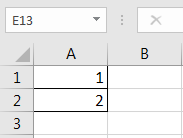


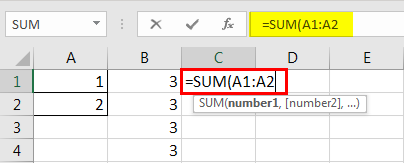

Why do we get the same Excel not responding result?
Because once we press the “Enter” key, Excel again automatically recalculates all the formulas in Excel. We must turn it into a manual calculation.
- Step 1 – First, we must go to the “File” tab beside the “Home” tab.

- Step 2 – Then, click on “Options” in the last section.

- Step 3 – In the “Excel Options” window, go to “Formulas”.
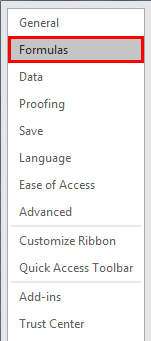
- Step 4 – In “Calculation options,” we can see that the default option is “Automatic.”

- Step 5 – After that, check it to “Manual” and uncheck “Recalculate workbook before saving” to stop Excel from recalculating a workbook before saving.

Example #2 – Remove Excel Add-in to Fix Excel Not Responding Error.
Sometimes, when we enable some excel add-ins, it can also cause Excel to freeze or not respond. But once we have already enabled the add-in and cannot open the excel workbook, how to open Excel and disable it?
We will learn the same in this example. In this example, we will start Excel in safe mode.
- Step #1: First, we must press the Windows button + R to open the run window.

In the “Open” bar type, as shown in the image below.
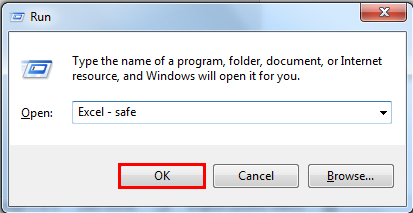
- Step #2: When we press “OK,” it opens Excel in safe mode for us. Now, go to the “File” tab beside the “Home” tab.
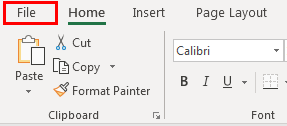
- Step #3 – Click on “Options” in the last section.
- Step #4 – In “Excel Options,” we can see “Add-ins” in the second last option.
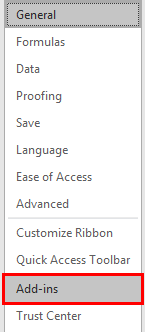
- Step #5 – Click on it, and in the “Add-ins” window, click on “Go” beside “Manage.”

- Step #6 – Now, another wizard box opens up where we have selected our add-ins.
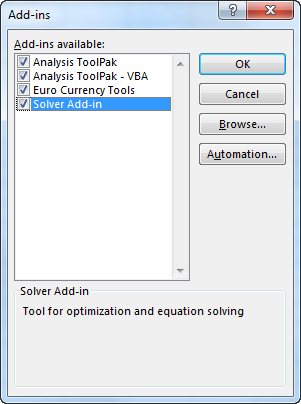
- Step #7 – Next, deselect any selected add-in and click on “OK.”
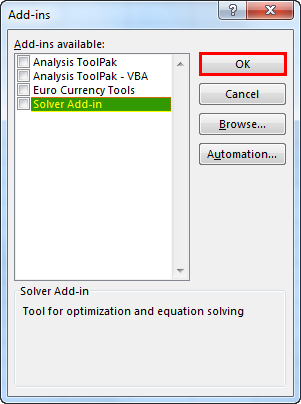
Now, try reopening the Excel file. It may fix the Excel not responding issue.
Example #3 – Remove Conditional Formatting to Fix Excel Not Responding Error
In the above examples, we have seen that the whole Excel file stops responding or freezes due to large data or large referencing formulas. But there may be a situation where we have problems with Excel not responding to only one of the worksheets in Excel.
First, let us discuss how this could happen. Why only in one worksheet of Excel? When we use conditional formatting and change the default formatting of a larger amount of data, it can also cause Excel to stop responding or freeze because conditional formatting works on some conditions provided by the user, which is formulas in general.
Select the total data by “CTRL + A”, but the most advisable method to select the entire data in a worksheet is by clicking the button below.

We need to go to “Conditional Formatting” in the “Home” tab under the “Styles” section.

Click on “Conditional Formatting”. We may see an option of “Clear Rules.”
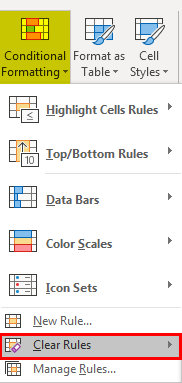
When we click on “Clear Rules,” it gives us two options: “Clear Rules from Selected Cells” or “Clear Rules from Entire Sheet.”

Click on “Clear Rules from Entire Sheet.”
The above method will remove any conditional formatting done in the worksheet, which may troubleshoot the issue of excel not responding.
Important Things To Note
- If we need to disable something to come out of Excel, not responding issue, we must open Excel in safe mode.
- Always install an Excel version (32-bit, 64-bit) per the computer’s configuration.
- We must try to move large data in different worksheets rather than keeping them in a single worksheet.
Frequently Asked Questions
1. What are Add-Ins in Excel that may cause the Excel not Responding error?
• Add-ins in Excel are additional features that extend the application’s capabilities and allow users to extend the program’s functionality across various platforms that include Windows, Mac, etc. In addition, the users can add customized features and commands to the Excel application for easy access.
• It supports users to interact better with the Excel objects and more efficiently manipulate their data in a spreadsheet.
• The three types of Add-ins are,
• Excel Add-ins that are already in the application. We have to enable them.
• Downloadable Add-ins that we can download from the internet.
• Custom Add-ins built using VBA Macros and add them in the Excel ribbon.
Whenever we come across the Excel not responding error, one possible solution is to disable or remove the add-ins, as we learnt in the article.
2. Which Excel extension should we use to avoid the Excel not responding errors?
We should use the Excel extension in the Save as type: field of the Save As window that best suits our file format and data type. The below image highlights the Excel Extensions we can typically use to save our Excel files.
• For files without macros, use the XLSX extension.
• For files with macros, use the XLSM extension.
• To reduce our Excel file size, use the XLSB extension.
• If our Excel version is older than 2007, use the XLS extension.
• If our Excel file contains Excel add-ins, use the XLAM extension.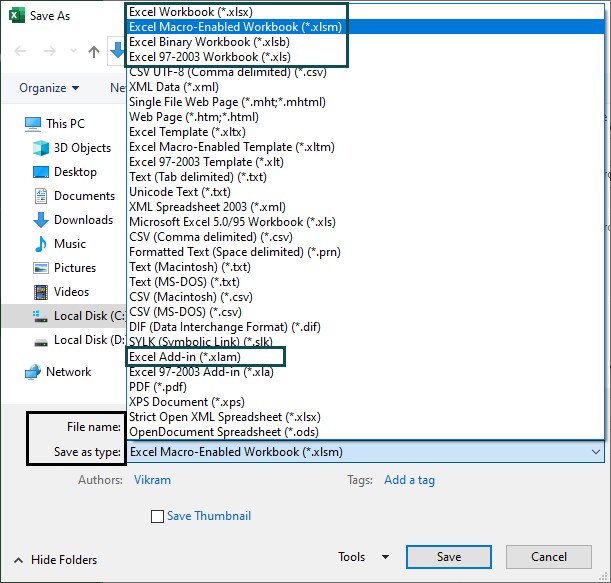
Whenever we come across the Excel not responding error, one possible solution is to save the files with the proper extension. So, the file opens accordingly without an error.
3. What is the alternative when we face an Excel not responding error?
When we face an Excel not responding error as an alternative, till we fix the Excel issue,
• We can use MS Office 365 online for free.
• We can use Google Sheets, although a few features may not be available, like Excel.
Recommended Articles
This article has been a guide to Excel not Responding. Here we discuss excel errors, reason it occurs, solutions, troubleshooting’s, examples, downloadable template. You may learn more about Excel from the following articles: –