


Part of our User Interface Components in VBA guide
Excel VBA Login Form
It is possible to create a login-based user form in Excel VBA with all the login ID drop-down lists, and it will share the password separately. However, at some point, you must have an idea of creating a password-based login user form, which requires the user to pick their user ID and enter the password to access the required worksheet.
This article will show you how to create a login UserForm using Excel VBA.
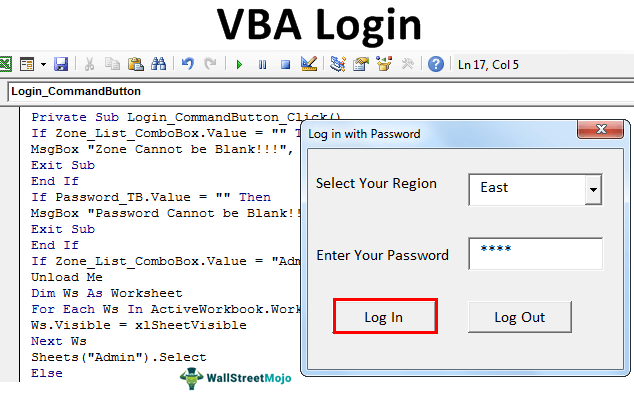
How to Create a Login User Form?
For example, assume you have region-wise sales numbers in different worksheets. We have four different zone names, and each zone worksheet has its related data only. Now, the idea is to create a login form where the “East” zone sales head should see only “East” zone data. Not any other zones, but as an admin, you should see all the zones’ worksheets.
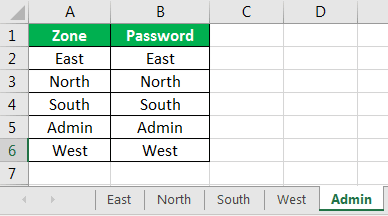
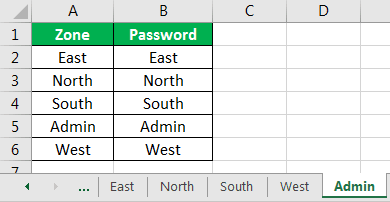
First, we need to insert a sheet name called “Admin.” Then, in this admin sheet, we need to create “Login ID” and “Password” credentials.
 3
3
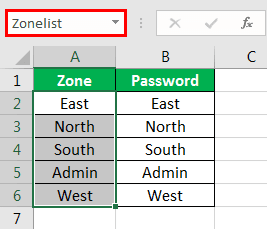
We have named the zone and password the same. You can change this later. We have created the name range for zone names as “ZoneList.” This “Name Manager” will be used later on this login UserForm.
When the user opens the file, they should see one dummy sheet in the background, so create a new sheet and name it the “Dummy” sheet.
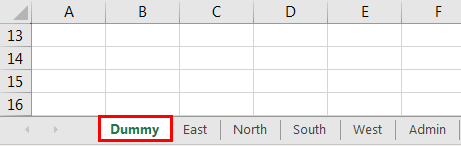
Using these worksheets, we will create a login UserForm.
Step 1: Insert User Form
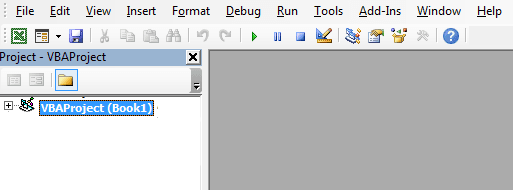
Press ALT + F11 key to open the VBA Editor window.
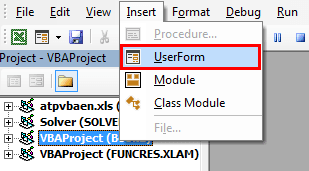
- From the “Insert” tab, insert “UserForm.”
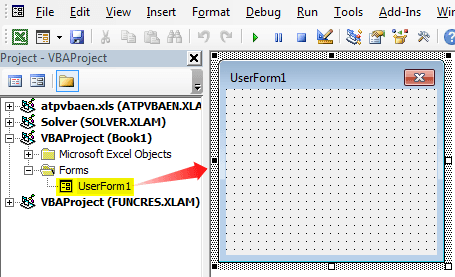
- It will create a new UserForm like the below one.
- Press the F4 key to see the “Properties” window. From this window, change the name of the UserForm to “LogInUF.”
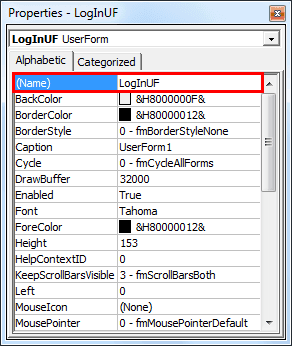
- Similarly, using this properties window, we can play with the properties of the UserForm. We have made some of the property changes. We can refer to the below properties window to apply changes to the properties of the UserForm.
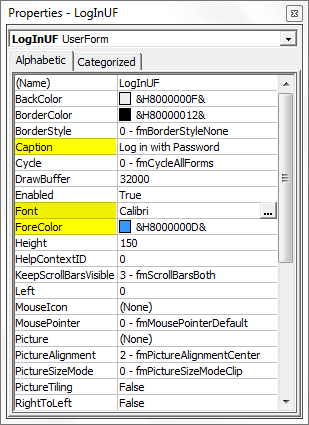
- Now, my UserForm looks like this.
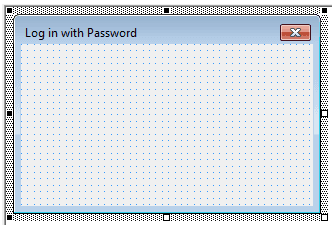
Step 2: Design Userform
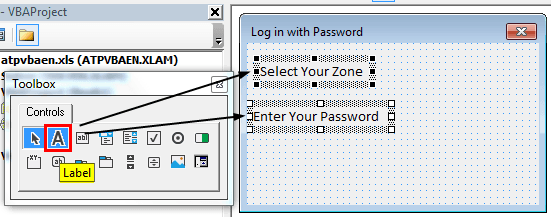
- From the toolbox of the UserForm, insert two label boxes and enter the text, as shown below.
- From the toolbox, insert “Combo Box.”
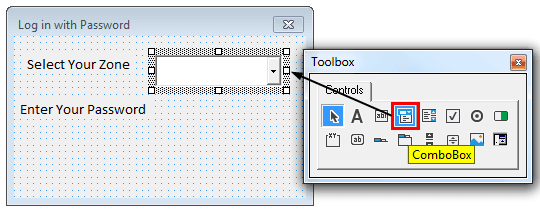
- For this ComboBox excel, we need to get the zone names from the worksheet “Admin Sheet,” so from the properties window of the “Combo Box,” first give a name to this combo box as “Zone_List_ComboBox” under the “Name” property.
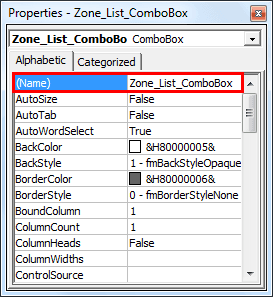
- From the “RowSource” property of the combo box, enter the name given to the zone list in the “Admin Sheet.”
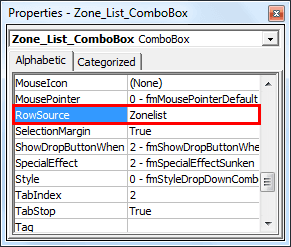
- Now, our ComboBox should show zone names in its dropdown list in excel.
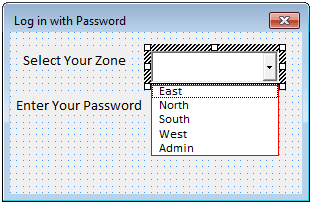
- For “Enter Your Password,” we need to insert a “Text Box” from the toolbox.
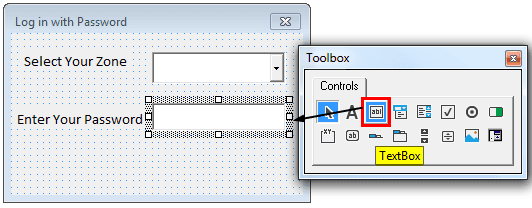
- For this “Text Box,” we need to change the “Name” property and change it as “Password_TB.”
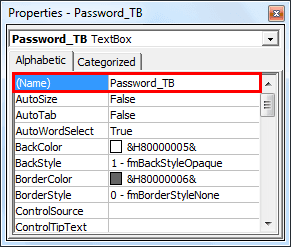
Now in the coding for the VBA login form, “Combo Box” will be referred to by the name “Zone_List_ComboBox,” and “Text Box” will be referred to by the name “Password_TB.”
- Insert two “CommandButton” and enter the text as “Log In” and “Log Out.”
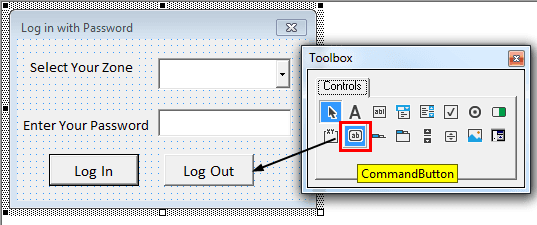
For the “Log In” command button, change the name property to “Login_CommandButton,” and for the “Log Out” command button, change the name property to “LogOut_CommandButton.”
Step 3: Code
We completed the VBA login UserForm design part. Next, it is time to write the code to create a login-based UserForm in Excel VBA.
- Double click on the “Log In” Command Button. It will open a blank sub procedure like the below one.
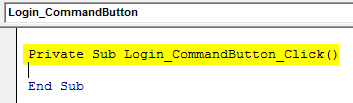
Inside this procedure, we need to write the code about what should happen if we press the “Log In” button.
We have already written the code. We can copy and paste the code from below inside the above procedure.
Code:
Private Sub Login_CommandButton_Click() If Zone_List_ComboBox.Value = “” Then MsgBox “Zone Cannot be Blank!!!”, vbInformation, “Zone Name” Exit Sub End If If Password_TB.Value = “” Then MsgBox “Password Cannot be Blank!!!”, vbInformation, “Password” Exit Sub End If If Zone_List_ComboBox.Value = “Admin” And Password_TB.Value = “Admin” Then Unload Me Dim Ws As Worksheet For Each Ws In ActiveWorkbook.Worksheets Ws.Visible = xlSheetVisible Next Ws Sheets(“Admin”).Select Else Dim ZoneName As String Dim Password As Variant ZoneName = Zone_List_ComboBox.Value Password = Application.WorksheetFunction.VLookup(ZoneName, Sheets(“Admin”).Range(“A:B”), 2, 0) If Password <> Password_TB.Value Then MsgBox “Password is not matching”, vbInformation, “Wrong Password” Exit Sub End If If Password = Password_TB.Value Then Unload Me Sheets(ZoneName).Visible = True Sheets(ZoneName).Select ActiveSheet.Range(“A1”).Select End If End If End Sub
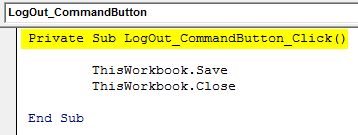
Similarly, double click on the “Log Out” command button and enter the below code.
Code:
Private Sub LogOut_CommandButton_Click()
ThisWorkbook.Save
ThisWorkbook.Close
End Sub
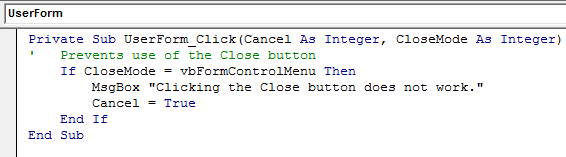
Now, double click on “UserForm” (not on any of the buttons inserted) and add the below code.
Code:
Private Sub UserForm_QueryClose(Cancel As Integer, CloseMode As Integer)
. ‘ Prevents use of the Close button
If CloseMode = vbFormControlMenu Then
MsgBox “Clicking the Close button does not work.”
Cancel = True
End If
End Sub
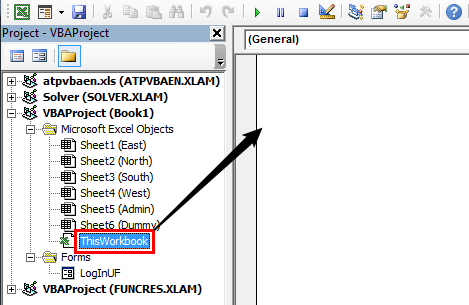
- Now, double-click on the “ThisWorkbook” icon. It will open up below the blank code field.
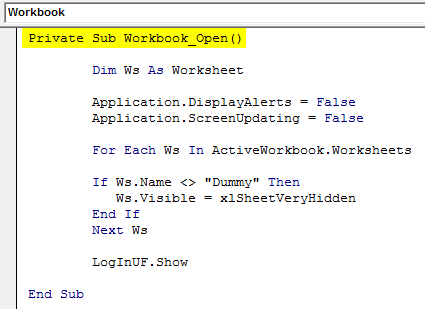
Now add the below code in this blank field.
Code:
Private Sub Workbook_Open()
Dim Ws As Worksheet
Application.DisplayAlerts = False
Application.ScreenUpdating = False
For Each Ws In ActiveWorkbook.Worksheets
If Ws.Name <> “Dummy” Then
Ws.Visible = xlSheetVeryHidden
End If
Next Ws
LogInUF.Show
End Sub
- We have completed the coding part of the form. Next, save the workbook as a “Macro-Enabled” workbook and reopen the workbook. Upon reopening the workbook, we should see the below window.
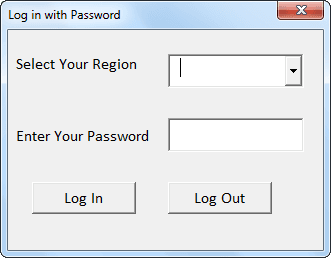
- We must choose the respective zone name from this UserForm and enter the associated password. For example, we will choose the “East” zone from the dropdown and enter the password.
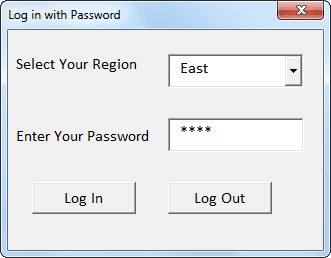
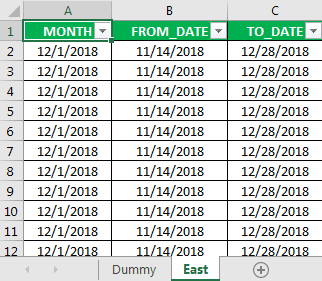
- If we click “Log In,” we can see only the “East” zone worksheet.
Similarly, if we log in with “Admin,” we can access all the worksheets.
Like this, we can create login-based password-protected worksheet access.
Things to Remember
- It would help if we used the same names given to the UserForm, text box, command button, and combo box in the coding.
- We can change the zone name and password according to your wish.
Recommended Articles
This article has been a guide to VBA Login. Here, we discuss how to create a login form in Excel VBA with the help of an example and a downloadable Excel sheet. You can learn more about VBA from the following articles: –