


Part of our VBA Functions guide
FIND Function of VBA Excel
→ Explore all 42 Text Functions in Excel articles
The FIND function of VBA excel searches a specific value in a specified range. It looks for the first instance of such value and if a match is found, the function returns the cell containing it. However, if a match is not found, the function does not return anything. The FIND function of VBA can return either an exact or a partial match.
For example, the following code looks for the string “rose” in the range A1:A10 of “sheet1.”
With Sheets(“Sheet1”).Range(“A1:A10”)
Set Rng = .Find(What:=“rose”)
The purpose of using the FIND function in VBA is to locate the desired value in a given dataset. With a VBA code, one can automate the task of finding values in Excel. Similar to the VBA FIND, there is a “find and replace” feature in Excel too. Let us revisit the latter to understand the former.
A Revisit to the “Find and Replace” Feature of Excel
In this section, the “find and replace” dialog box of Excel has been explained briefly. The steps to find and replace a value in a worksheet are listed as follows:
Step 1: Press the keys “Ctrl+F” together to access the “find and replace” feature of Excel. Alternatively, from the “editing” group of the Home tab, click the “find & select” drop-down. Next, select the option “find.”

Step 2: The “find and replace” dialog box appears, as shown in the following image. Click “options” to see more features.

Step 3: The succeeding dialog box is displayed. This box helps find the value specified in the “find what” box. The search is subject to the following constraints:
- Within: This determines whether the search would be conducted in a worksheet or workbook.
- Search: This decides whether the search would be conducted in rows or columns.
- Look in: This decides whether the search would be conducted in formulas, values or comments of Excel.
At any point of time, one can click “options” to go back to the window shown in step 2.

Step 4: Click the “replace” option in the “find and replace” dialog box. The “replace with” option appears, as shown in the following image. This option is used when one value needs to be replaced by another.

This is how the “find and replace” feature of Excel works. Let us now return to the FIND function of VBA Excel.
Syntax of the FIND function of VBA
The syntax of the FIND function of VBA is stated as follows:
expression.Find(What, After, LookIn, LookAt, SearchOrder, SearchDirection, MatchCase, MatchByte, SearchFormat)
The “expression” is the range object, which precedes the FIND function in a VBA code. The search range can be one or more rows, columns or the entire worksheet. The FIND function of VBA excel accepts the following arguments:
- What: This is the value to be searched. It can be numeric, textual or any other data type of Excel. This argument is the same as the “find what” option of the “find and replace” window of Excel.
- After: This indicates the cell after which the search will begin. It is entered as a single cell reference. If this argument is omitted, the search begins after the cell in the upper-left corner of the specified search range.
- LookIn: This is the place (or data) where the value needs to be searched. It can be a comment (xlComments), formula (xlFormulas) or value (xlValues). The default value of this argument is xlFormulas. Further, this argument is the same as the “look in” option of the “find and replace” window of Excel.
- LookAt: This decides whether to match the content of the entire cell (exact match) or to match a part of the cell content (partial match). The constants are xlWhole and xlPart for exact and partial matches respectively. The default value of this argument is xlPart.
- SearchOrder: This suggests the order of the search. One can specify whether the search will be in rows (xlByRows) or columns (xlByColumns). The default value of this argument is xlByRows. Further, this argument is the same as the “search” option of the “find and replace” window of Excel.
- SearchDirection: This indicates the direction in which the search will be carried out. One can search downwards or in the next cell with the constant xlNext. Alternatively, one can search backwards (upwards) or in the previous cell with the constant xlPrevious. The default value of this argument is xlNext.
- MatchCase: This decides whether the search is case-sensitive or not. If the search is case-sensitive, this argument is specified as true, otherwise it is false. The default value of this argument is false.
- MatchByte: This is used if one has installed or selected double-byte language support. It must be specified as true, if double-byte characters are to be matched with double-byte characters. It must be specified as false, if double-byte characters are to be matched with their single-byte equivalents.
- SearchFormat: This indicates whether the value to be searched should be in a specific format (like bold or italics) or not. If the search value should follow a formatting technique, this argument is specified as true, otherwise it is false. The default value of this argument is false.
Only the argument “what” is required. The rest of the arguments are optional.
The Excel VBA Find returns either of the following outcomes:
- If a match is found, the function returns the first cell where the value is located.
- If a match is not found, the function returns nothing. This is because the object of the function is set to nothing.
Alternatively, in case a match is not found, a customized message specified in the MsgBox function can be returned (refer to the code of the succeeding examples).
Note 1: The search begins after the cell specified in the “after” argument and continues till the last cell of the search range. If the value is not found till this last cell, the search begins again from the first cell of the search range till the cell specified in the “after” argument.
So, the cell specified in the “after” argument is searched at the end of the search process. For more details on the usage of the “after” argument, refer to example #2 of this article.
Note 2: Each time the FIND function of VBA is used, the settings of LookIn, LookAt, SearchOrder, and MatchByte are saved. So, if these values are omitted the next time the function is used, Excel VBA uses the previously saved values. Hence, it is recommended to explicitly state the given arguments each time search is performed by using the FIND function of VBA.
How to use the FIND Function of VBA Excel?
Let us consider some examples to understand the working of the Excel VBA Find.
Example #1–Return the Cell Containing the First Instance of the Search Value
The following image shows some names in column A. We want to perform the following tasks in Excel VBA:
- Write a VBA code to search the first instance of the name “Aran” in column A.
- Ensure that cell A2 is selected on running the code.
Use the FIND function of VBA.

The steps to search the given name (first instance) by using the FIND function of VBA are listed as follows:
Step 1: Make sure that the Developer tab is enabled in Excel. This tab will help write VBA codes. Once enabled, it will appear on the Excel ribbon, as shown in the following image.
Note: For steps related to enabling the Developer tab, click the given hyperlink.

Step 2: From the Developer tab, click “visual basic.” Next, double-click “sheet1” and a blank pane will appear on the right side.
Write the following VBA code in this pane. This is shown in the succeeding image.
Dim FindS As String
Dim Rng As Range
FindS = InputBox (“Enter the value you want to search”)
With Sheets (“Sheet1”) .Range (“A:A”)

Explanation of the code: The given code is explained as follows:
- “Sample” is the function name given to “sub.”
- “FindS” contains the InputBox message.
- “Rng” is the variable defined for the range. In this example, the range is the entire column A (A:A).
Once the code is run, the InputBox message will appear the way it is shown in the following image. However, before running the code, let us complete it first by executing the subsequent steps.
Note: The InputBox function of VBA displays a dialog box in which the user is required to enter an input.

Step 3: Define the FIND function within the code. Notice that in the “what” argument, we have entered “findstring.” Instead, in place of “findstring,” one can enter whatever one needs to search within the defined range.
So, since “Aran” needs to be searched in column A, it can be entered in place of “findstring.” But, ensure that this name is entered within double quotes. In this way, one can specify the “what” argument of the FIND function.

Step 4: Close the function by entering the arguments (“end if,” “end with,” and “end sub”) shown in the following image.
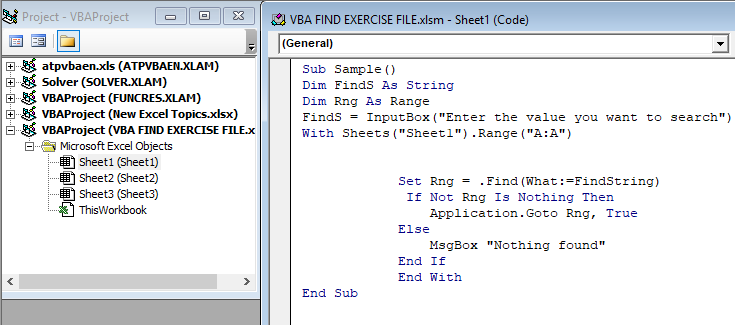
Step 5: Save the file containing the VBA code as a macro-enabled workbook (.xlsm extension). Next, from the “run” tab, select “run sub/user form (F5).” This command runs the code.
On running the code, the succeeding dialog box appears. It shows the InputBox message that we had entered in step 2. In this box, enter the name “Aran” (with or without double quotes) and click “Ok.” Excel VBA will select cell A2, which contains the name “Aran.”
Had “sheet1” not contained the name “Aran,” Excel VBA would have returned the message “nothing found.” This message is specified in the MsgBox function of the code.
Note: By default, Excel VBA returns the first instance of the search value in the defined range. However, for Excel VBA to return cell A2, the “what” argument as well as the following dialog box, should contain the string “Aran.”
Example #2–Return the Cell Containing the Second Instance of the Search Value
The following image contains some names in the range A1:A10. Notice that the name “Aran” appears twice in column A. Write a VBA code to search and select the second instance of the name “Aran” in column A (i.e., cell A6).
Use the FIND function of VBA Excel.

The steps to search the second instance of the given name by using the FIND function of VBA are listed as follows:
Step 1: Access the Developer tab from the Excel ribbon. Click “visual basic” displayed on the left side of this tab.
From “Microsoft Excel objects,” select “Sheet2.” This is because “Sheet2” of Excel contains the dataset shown in the question of the example.
Note: For more details on Customizing the ribbon, click this hyperlink.

Step 2: Keep “sheet2” selected and from the “insert” tab, choose “module.” A blank pane appears on the right side, as shown in the following image.

Step 3: Begin to write the code in the blank pane. Define the function as “sub sample2()” and press the “Enter” key. This is the first part of the code, which is written without the double quotation marks, as shown in the following image.

Step 4: Define the variables of the code. This time “rng1” is the variable defined for range. The same is shown in the following image.

Step 5: Define the InputBox function for the “findS” variable. The InputBox message stays the way it was written in step 2 of the preceding example.

Step 6: Enter the name of the worksheet in which the FIND function needs to conduct a search. Specify the range to be searched as well. So, we enter “sheet2” and range “A:A” within double quotation marks. This is shown in the following image.
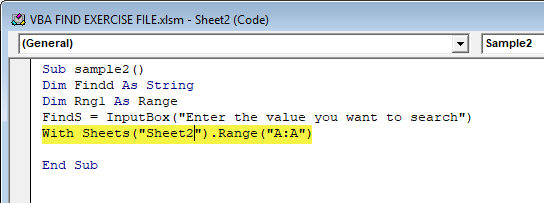
Step 7: Define the FIND function. At present, the “what” argument contains “findstring.” Since the name “Aran” is to be searched in column A, enter this name in place of “findstring.” Ensure that this name is entered within double quotes.
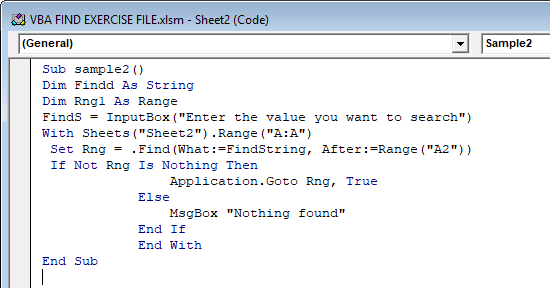
Further, since the second instance of the name “Aran” needs to be searched, specify the “after” argument. Enter “A2” as the “after” argument. This is because we want the search to begin after cell A2.
The arguments of the VBA FIND function are shown in the following image.

Explanation of the “after” argument: The search begins after cell A2 and continues till the last cell of column A. This is because the search range has been specified as column A (A:A).
So, since the search begins from cell A3, the value “Aran” is found in cell A6 of “Sheet2.” Hence, cell A6 will be selected by the FIND function on running the code.
Had the name “Aran” not been found from cell A3 till the last cell of column A, the search would again begin from cell A1 and end at cell A2 this time. Thus, the cell specified in the “after” argument is searched right at the end of the search process.
Step 8: Close the code by ending the “if” and “with” conditions. Close the “sub” argument by writing “end sub.” The complete code is shown in the succeeding image.
Run the code by selecting “run sub/user form (F5)” from the “run” tab of Excel VBA. The InputBox message appears asking for a value to search. When the name “Aran” is entered in this box, the outcome is the selection of cell A6. This cell contains the second instance of the name “Aran.”
Had a match not been found in the entire “sheet2,” the output would have been “nothing found.” This response is defined by the MsgBox function of the code.
Frequently Asked Questions (FAQs)
1. Define the FIND function of VBA Excel.
The FIND function of VBA searches for a specified value in the range defined by the user. To search, a VBA code is written by entering some or all arguments of the FIND function. One can specify the direction of search, order of search, data to be searched, the format of the search value, and so on.
The FIND function returns the cell containing the specified value. If a match is not found, the function does not return anything.
Note: For the syntax of the FIND function, refer to the heading “syntax of the FIND function of VBA” of this article.
2. How to find the last occurrence of a text string by using the FIND function of VBA?
To find the last occurrence, specify the “after” argument in the VBA code. This argument tells VBA the exact cell after which the search should begin. Note that, at a given time, a single cell reference can be supplied in this argument. It is not possible to list multiple cell references in the “after” argument.
The “after” argument is entered following the “what” argument of the FIND function. For instance, if the search range is A1:A25 and cell A20 contains the second last occurrence of the search value, the code is written as follows:
With Sheets (“Sheet4”).Range(“A1:A25”)
Set Rng = .Find(What:=“textstring”, After:=Range(“A20”))
With this code, the search for the value “textstring” begins after cell A20 in “sheet4.” The FIND function searches in the range A21:A25 and returns the last occurrence of the search value. If a match is not found in the range A21:A25, the function searches in the range A1:A20.
Note: For details related to the working of the “after” argument, refer to “note 1” of the syntax and the “explanation” in example #2 (after step 7) of this article.
3. By using the FIND function of VBA, how can one find a string by specifying some of its characters?
To find a string by specifying a part of it, either enter the LookAt argument as xlPart or omit this argument. By default, the FIND function matches the characters of the search value with the entire string. Then it returns the cell containing this entire string.
For instance, the code containing a part of a string is written as follows:
With Sheets(“Sheet4”).Range(“A1:A25”)
Set Rng = .Find(What:=”ssa”, LookAt:=xlPart)
This code searches the characters “ssa” in the range A1:A25 of “sheet4.” The cell containing the value “text message” is returned, which is called a partial match. Hence, irrespective of whether the characters of the search value are placed at the beginning, middle or end of the string, Excel VBA returns a corresponding match.
Note: The xlPart constant can be omitted from the code because it is the default value of the FIND function. But, if this argument is specified, ensure that it is not placed within double quotation marks.
Recommended Articles
This has been a complete guide to the VBA FIND function. Here we learn how to use Excel VBA FIND function with practical examples and a downloadable Excel sheet. You may also look at other articles related to Excel VBA–