


Part of our Financial Functions in Excel guide
What Is The Yield Function in Excel?
The YIELD function in Excel is a built-in financial function used to determine the yield on a security or bond that pays interest periodically. The Excel YIELD function calculates bond yield by using the bond’s settlement value, maturity, rate, bond price, and redemption.
The
YIELDfunction in Excel calculates the annual yield of a security or bond that pays periodic interest. Its syntax is=YIELD(settlement, maturity, rate, pr, redemption, frequency, [basis]). It requires details like purchase date, maturity date, coupon rate, and price to return the yield percentage.
Syntax
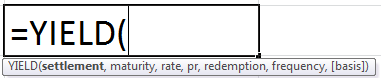
Compulsory Parameters:
- Settlement: The date the coupon is purchased by the buyer, the date the bond is purchased, or the security’s settlement date.
- Maturity: The maturity date of security or the date on which the purchased coupon expires.
- Rate: Rate is the annual coupon rate of security.
- Pr: Pr represents the security price per $100 stated value.
- Redemption: Redemption is security’s redemption value per $100 stated value.
- Frequency: Frequency means several coupons paid per year, 1 for annual payments, 2 for semiannual, and 4 for quarterly payments.
Excel Yield Function Explained in Video

How To Use the Yield Function in Excel?
Example #1
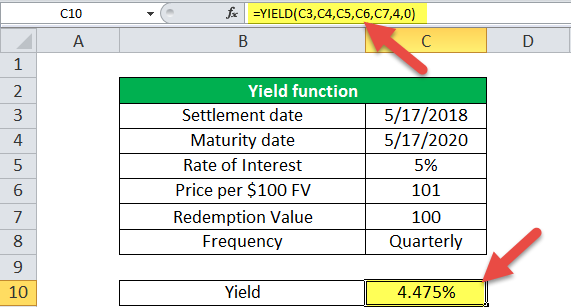
Bond Yield calculation for quarterly payment.
Let us consider the settlement date as 17th May 2018, and the maturity date is 17th May 2020 for the purchased coupon. The interest rate per annum is 5%, price is 101, redemption is 100, and payment terms or frequency is quarterly, the yield will be 4.475%.
Example #2
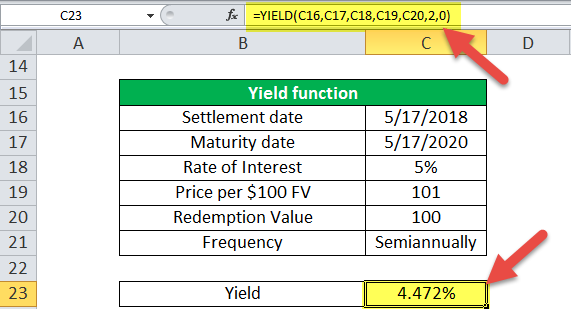
Bond Yield calculation in Excel for semi-annually payment.
The settlement date is 17th May 2018, and the maturity date is 17th May 2020. The rate of interest, price, and redemption values are 5%, 101, and 100. For semiannually, payment frequency will be 2.
Then output yield will be 4.472% [considered basis as 0].
Example #3
Bond Yield calculation in Excel for a yearly payment.
For yearly payment, let us consider the settlement date is 17th May 2018 and the maturity date is 17th May 2020. The rate of interest, price, and redemption values is 5%, 101, and 100. Therefore, for semi annually, payment frequency will be 1.
Then output yield will be 4.466%, considered basis as 0.

Things to Remember
Below are the error details that can become across in the Bond Yield Excel function due to type mismatch:
#NUM!: There may be two possibilities for this error in the bond yield in Excel.
- If the settlement date in the YIELD function is greater than or equal to the maturity date, then #NUM! Error occurs.
- Invalid numbers are given to rate, pr, redemption, frequency, or [basis] parameters.
- If rate < 0, then yield in Excel returns the #NUM! Error.
- If pr <=0 and redemption <= 0 then YIELD Excel function returns the #NUM! Error.
- If the given frequency is not 1,2, or 4, then the YIELD Excel function returns the #NUM! Error.
- If basis < 0 or if basis > 4 then YIELD Excel function returns the #NUM! Error.

#VALUE!:
- If any of the given parameters are non-numbers.
- The dates are not provided in proper date format.
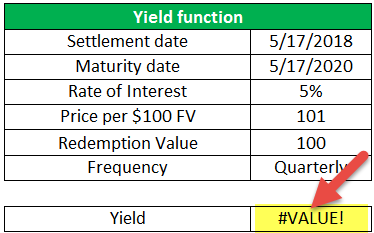
Microsoft Excels stores the date sequence from the 1st January 1900 as number 1 and 43,237 days for 17th January 2018.
Recommended Articles
This article is a guide to the YIELD Function in Excel. Here, we discuss the YIELD formula and how to use it in Excel, practical examples, and downloadable Excel templates. You can also learn more about Excel from the following articles: –