


Part of our Text Functions in Excel guide
How To Search For Text In Excel?
Search for Text in Excel helps us find cell values with Text or strings. We can replace the text with the desired text, strings, or characters. The usual method to search for a specific text in the worksheet is the “Find and Replace” method.
For example, we can perform the Excel Search for text using some of the inbuilt functions in Excel, such as COUNTIF(), FIND(), SEARCH(), etc., as shown in the below image.
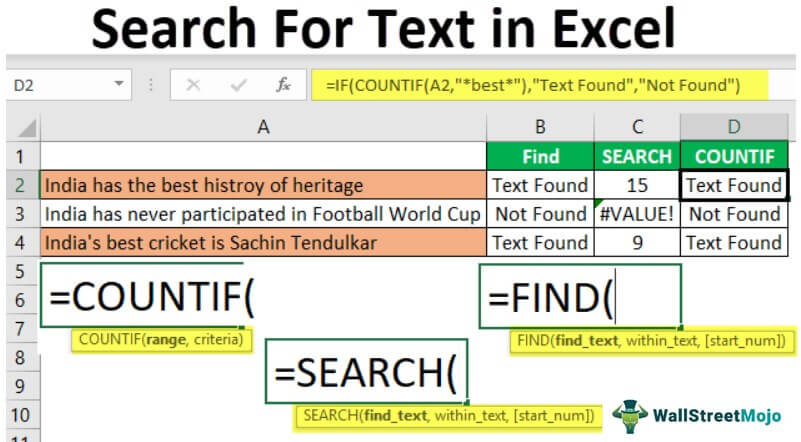
Here, we will take you through the formulas to search for the particular text in the cell value and arrive at the result.
Key Takeaways
- Search for Text in Excel helps users searchfor a specific word or a text in a sentence or a cell value with strings, and also replace it with another text if necessary.
- We can identify the text strings using some of the methods, namely,
- “Find & Replace” à first, we find the required word, and then replace it with a new text.
- Excel formulas à We can use some inbuilt Excel formulas such as FIND() and SEARCH() to find text, ISNUMBER(), and ISTEXT() to identify the cell values as text and return logical Boolean values.
- We can create a rule using the Conditional Formatting method and highlight the required text.
Which Formula Can Tell Us A Cell Contains Specific Text?
A few formulas that help us identify text cells are, “FIND” function, ISNUMBER function, IF Condition, ISERROR function, etc. We will take you through the formulas to search for the particular text in the cell value and arrive at the result.
#FIND function
It can return the position of the supplied text values in the string. So, if the FIND method returns any number, then we can consider the cell as it has the text or else not.
For example, look at the below data.

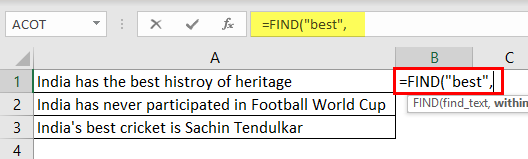
Here, we have three sentences in three different rows. Now in each cell, we need to search for the text “Best”. So, apply the FIND function.

The “find_text” argument mentions the text we need to find.

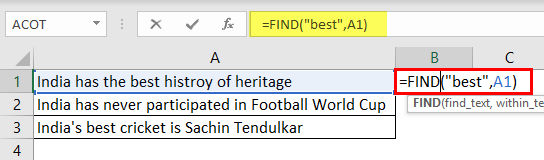
For the “within_text”, select the full sentence, i.e., cell reference.

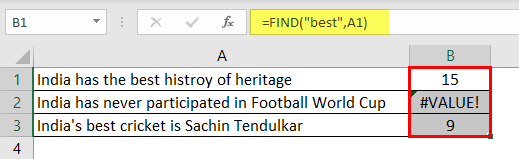
The last parameter is not required. Now, close the bracket, press the “Enter” key, and drag the formula from cell B1 to B3 using the fill handle. The output is shown below.

So, cells A1 and A3 have the word “best”. We can see the #VALUE! error in cell B2, which shows that cell A2 does not have the text value “best”.Instead of numbers, we can also enter the result in our own words. For this, we need to use the IF condition, as shown below in the formula bar.



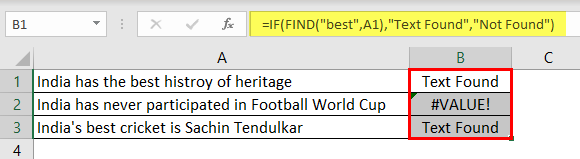
- So, in the IF condition, we have supplied the result as “Text Found” if the value “best” is found. Otherwise, we have provided the result as “Not Found”.
- But, here we have a problem, even though we have supplied the result as “Not Found”, if the text is still not found, we are getting the error value as #VALUE!.
To fix the error we must enclose the ISNUMBER function, as shown below.

The ISNUMBER function evaluates whether the FIND function returns the number or not. If the FIND function returns the number, it will supply TRUE to the IF condition or else FALSE condition. Based on the result provided by the ISNUMBER function, the IF condition will return the result accordingly.
We can also use the IFERROR function in excel to deal with error values instead of ISNUMBER. For example, the below formula will also return “Not Found” if the FIND function returns the error value.
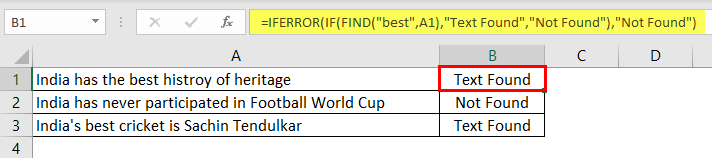
Alternatives To the FIND Function
We considered the Find & Replace option, or the FIND function, to Search for Text in Excel. Now, we will see other alternative methods or functions available, such as,
- Excel Search Function.
- Excel COUNTIF Function.
Alternative #1 – Excel Search Function
The SEARCH function in excel helps us to search the particular text in the string.
The syntax of the SEARCH function is the same as the FIND function.
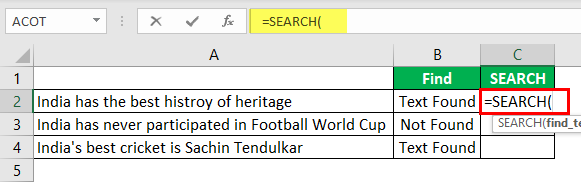
Supply the “find_text” as “Best”.
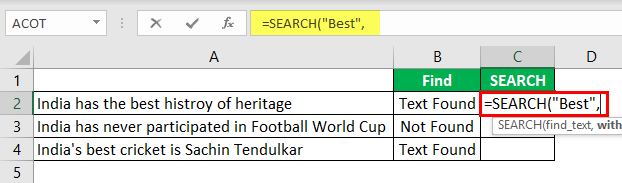
The “within_text” is our cell reference.
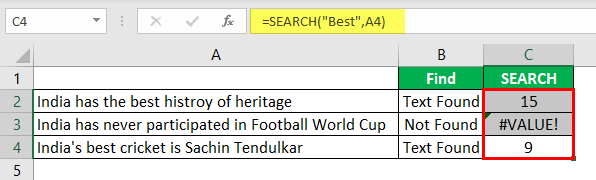
Even the SEARCH function returns an error value as #VALUE! If the finding text “best” is not found. As seen above, we must enclose the formula with ISNUMBER or IFERROR functions.
Alternative #2 – Excel Countif Function
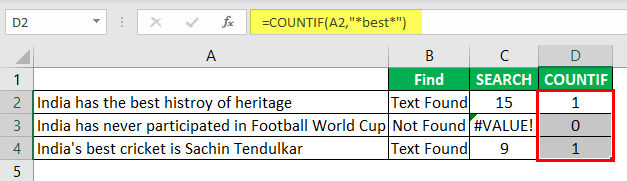
Another way to search for a particular text is using the COUNTIF function. This function works without any errors.
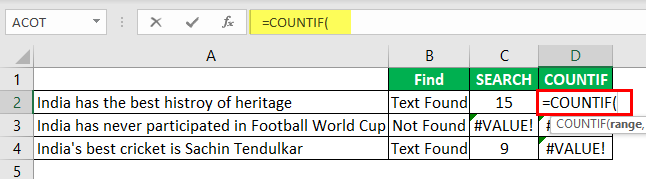
In the range, the argument selects the cell reference.
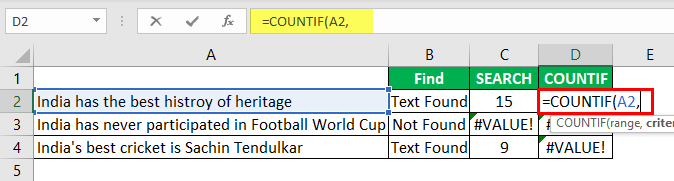
In the criteria column, we need to use a wildcard in excel because we are just finding the part of the string value, so enclose the word “best” with an asterisk (*) wildcard.
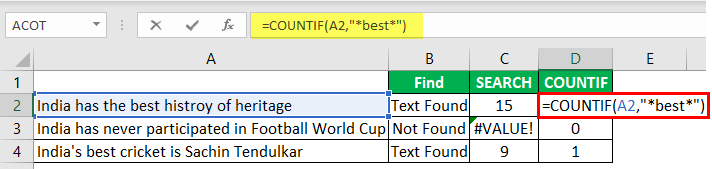
This formula will return the word “best” count in the selected cell value. Since we have only one “best” value, we will get only 1 as the count.
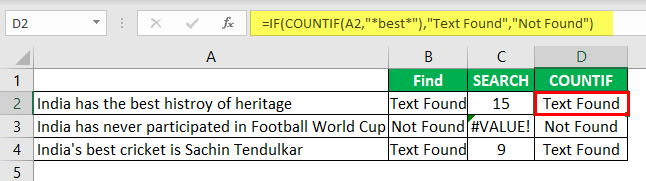
We can apply only the IF condition to get the result without error, as shown below.
Highlight The Cell Which Has A Particular Text Value
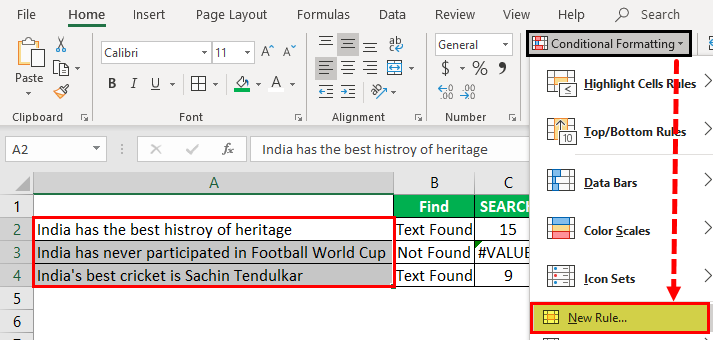
As another alternative method, instead of using the Excel functions, we can use the “Conditional Formatting” option to highlight the cell with a particular word.
For example, to highlight the cell with the word “best,” we need to use conditional formatting in excel.
First, select the data cells and click “Conditional Formatting” > “New Rule”.
Under “New Rule”, select the “Format only cells that contain” option.
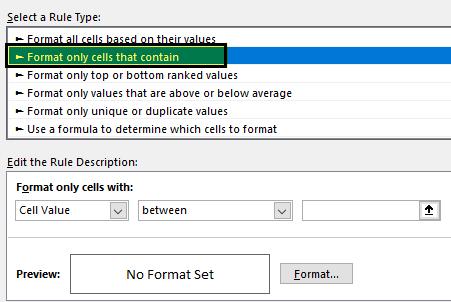
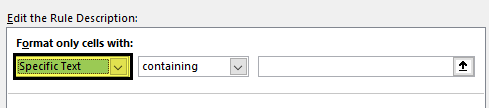
From the first dropdown, select “Specific Text”.
The formula section enters the text we search for in double quotes with the equal sign. =‘best’.

Then, click on “FORMAT”, and choose the formatting style.
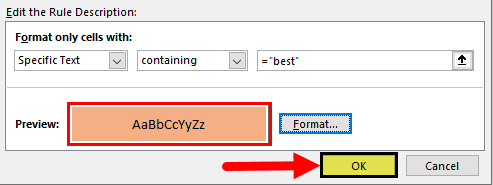
Click “OK”. It will highlight all the cells which have the word “best”.
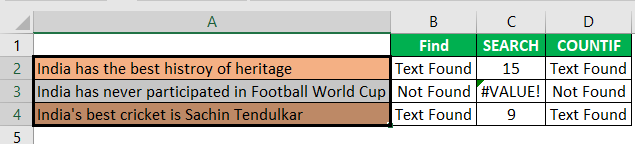
Using various techniques, we can search the particular text in Excel.
Important Things To Note
- We can Search for Text using various methods using formulas or “Conditional Formatting”.
- We can use the shortcut keys, Ctrl + F, to find the text we are looking for but cannot go beyond that. So, for example, if the cell contains certain words, we may want the result in the next cell as “TRUE” or “FALSE”. So, Ctrl + F stops there.
Frequently Asked Questions (FAQs)
Can I Search for Text in Excel in another sheet?
Yes, we can Search for Text in Excel in another sheet using the VLOOKUP, HLOOKUP and the XLOOKUP functions. Here, we will select the text to be searched as the lookup_value.
Name a few functions that help to Search for Text in Excel.
Some of the Excel functions that help us Search for Text are FIND(), ISNUMBER(), IF Condition, SEARCH(), COUNTIF(), etc. We can use the “Conditional Formatting” method, which helps us create a rule to highlight the words to search or find in a sentence.
Do we have a formula to Search for Text in Excel?
Yes, we have an inbuilt formula to Search for Text in Excel.
The syntax is,
=SEARCH(find_text,within_text,)
The arguments are,
- find_text: It is the substring/character to search within a string or the text. It is mandatory.
- within_text: It is the cell reference where we have to look for the substring. It is mandatory.
It tells from where or which character’s place the search must begin. If not provided, the function, by default, considers as 1 and starts the search from the first character of the selected cell.
Recommended Articles
This article is a guide to Search For Text in Excel. Here we find Text values, FIND, SEARCH, COUNTIF, Conditional Formatting, examples & downloadable template. You may learn more about Excel from the following articles: –