


Part of our Maths Functions in Excel guide
ROUNDDOWN Function in Excel
The ROUNDDOWN Excel function is a built-in function in Microsoft Excel. It is used to round off the given number. This function rounds off the given number to the nearest low number with the right to the given number. We can access this function by typing the keyword:
=ROUNDDOWN( in any cell)
For example, suppose we have the number 4.7 in cell A1 and want to round down to the nearest whole number. The resulting cell is B1. In such cases, we can use the Excel ROUNDDOWN formula:
=ROUNDDOWN(A1,0)
=4.
The Excel ROUNDDOWN function returns 4 in cell B1. The number 4.7 is rounded down to a given number of places.
Syntax
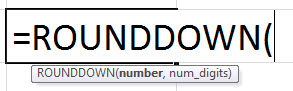
The ROUNDDOWN Function has two arguments, out of which both are required. Where
- text = It is a required parameter. It represents any real number that is to be rounded down.
- number_of_times = It is also a required parameter. It is the number of digits to which you want to round the number down.
How to use Excel ROUNDDOWN Function? (Examples)
The ROUNDDOWN function can be inserted as a part of the formula in the worksheet cells. Refer to a couple of examples given below to know more.
Example #1
Round a positive float number to zero decimal places
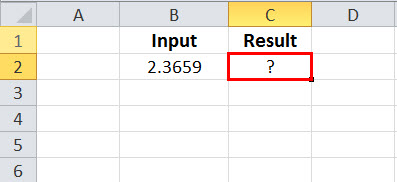
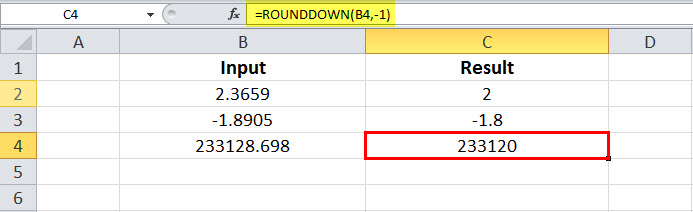
In the above example, cell B2 is an input number with value 2.3659.
The resulting cell is C2, wherein the ROUNDDOWN formula applied is =ROUNDDOWN(B2,0), which means it rounds down the value in B2 with zero decimal numbers.
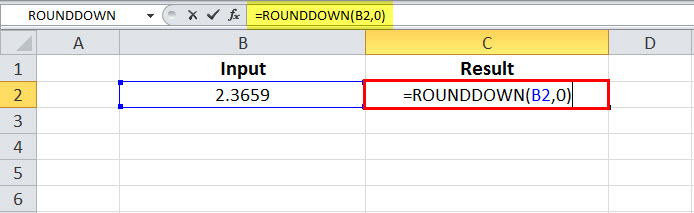
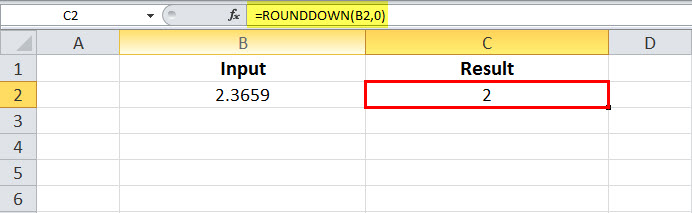
This yield result as 2 and the same is seen in the result of cell C2.
Example #2
Round a negative float number to one decimal places
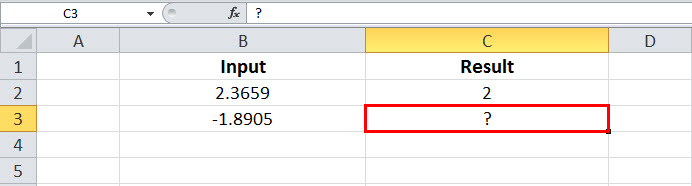
In the above example, cell B3 is an input number with a value of -1.8905. The resulting cell is C3, wherein the ROUNDDOWN formula applied is =ROUNDDOWN(B3,1), which means rounding down the value in B3 with one decimal number.
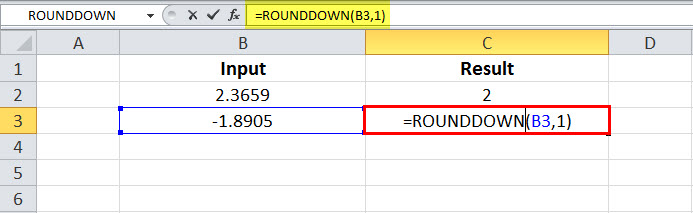
This yield result as -1.8 and the same is seen in the result of cell C3.

Example #3
Rounds a positive float number to one decimal place to the left of the decimal point
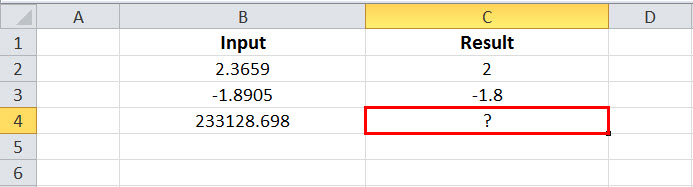
In the above example, cell B4 is an input number with value -1 233128.698.
The resulting cell is C4, wherein the ROUNDDOWN formula applied is =ROUNDDOWN(B4,-1), which means the number is rounded down to the left of the decimal point by 1.
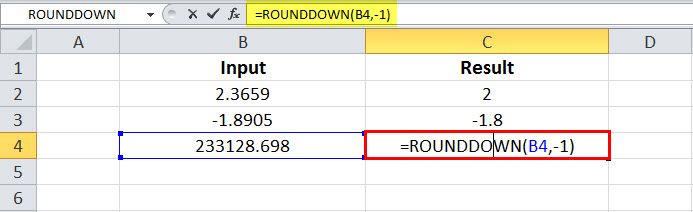
This yield result in 23312. The same is seen in the result of cell C4.
Things to Remember
- It rounds off the given number to the nearest number down the given number.
- Both the parameters are required.
- If the second parameter, num_digits, is zero, then the number is rounded down to the nearest integer number in the ROUNDDOWN function in Excel.
- If the second parameter, num_digits, is greater than zero, then the number is rounded down to the number of decimal digits mentioned in the ROUNDDOWN Excel function.
- If the second parameter, num_digits, is less than 0, the then number is rounded down to the left of the decimal point in the ROUNDDOWN function.
Recommended Articles
This article is a guide to ROUNDDOWN Function in Excel. Here, we discuss using the ROUNDDOWN function, Excel examples, and a downloadable template. You may also look at these useful functions in Excel: –