


Themes in Power BI
Working with the default theme does not make the reporting tool beautiful. But by changing themes, we can add more value and eye-catching color to our reporting dashboards on Power BI.
Assume you just bought a brand new mobile phone from a store. When you open it, it has all the basic features, and as the day goes on, we change each feature default thing to our things as per our liking.
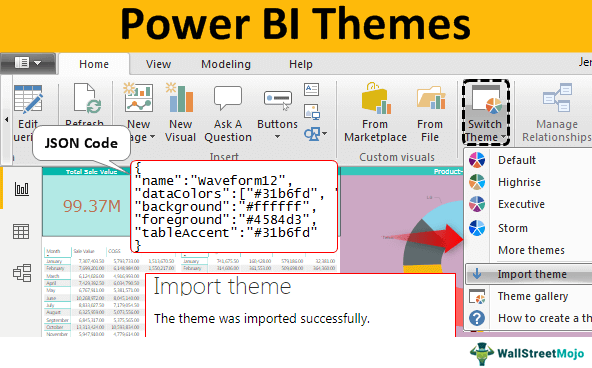
Change Default Theme in Power BI
Changing the default theme is not the hardest job in the world because it requires simple Power BI window knowledge. Follow the below steps to change the default theme.
Follow the below steps to change the default theme.
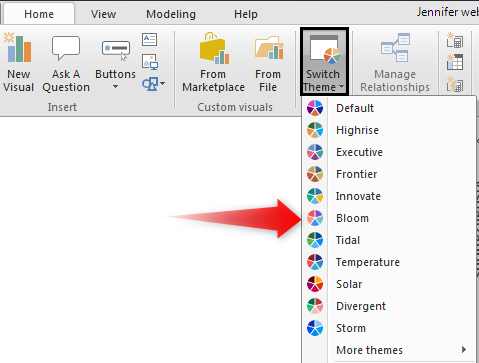
- Open Power BI visualization software. Go to the “Home” tab and find the “Switch Theme” option.

- From this dropdown list, you can see many built-in themes available with your version of Power BI.
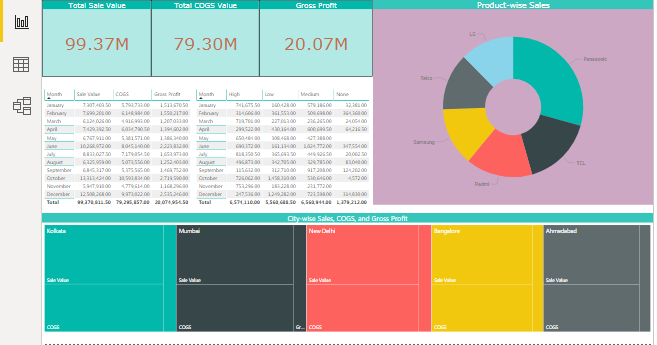
- Look at the below theme of the dashboard.
It is the default theme applied when we have created the dashboard.
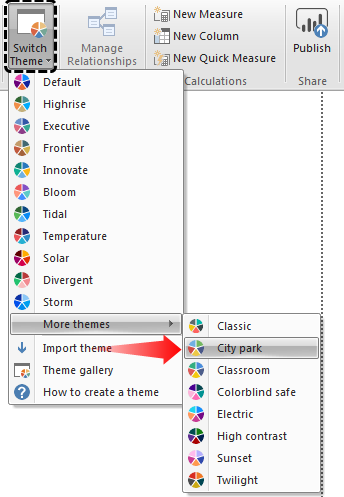
- We will apply the “City park” theme from the “Switch Theme” dropdown list under “More themes.”
- And, automatically, our dashboard changes as follows.
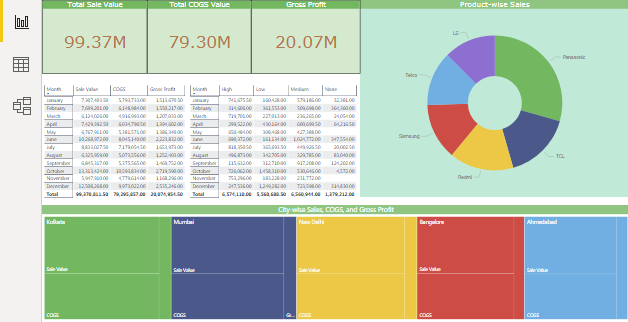
- Below is the preview of the “Twilight” theme impact.
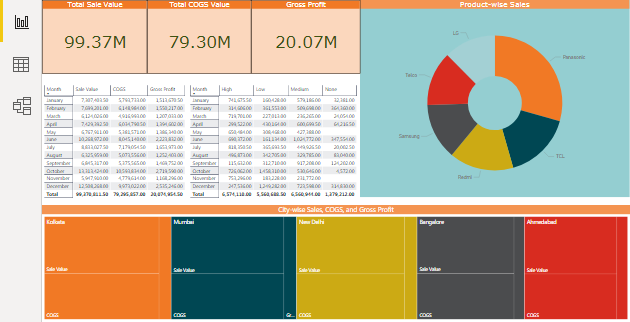
We can also build our theme using the “JSON” file format. Now, we will see the basic level “JSON” coding structure.
How to Design Power BI Themes?
To design your theme, you need JSON coding knowledge. At this point, you can download the already built-in JSON files or can create your files.
Format of JSON Theme
{

“name”:

“dataColors”

“background”

“foreground”

tableAccent”

}
Name: The first thing we can notice with any JSON file is the theme’s name, which is a mandatory field in the JSON file.
Data Colors: This one requires color codes for data. It would help if you learned about Hex color codes used in the JSON file. Like this, we can give Hex color codes to design your [header=”Power BI Report” description=”Power bi reports are detailed visualizations of data that are presented differently than common reports. These reports can be multi-page or single-page, with visuals on each page.” url=”https://www.wallstreetmojo.com/power-bi-reports/”]Power BI report[/wsm-tooltip] theme. It includes “Background Color,” “Foreground Color,” and “Table Accent Color.”
- Below is the JSON file code we are using to import as a custom theme file for my above-shown dashboard.
Code:
{
"name":"Waveform12",
"dataColors":["#31b6fd", "#4584d3", "#5bd078", "#a5d028", "#f5c040", "#05e0db", "#3153fd", "#4c45d3", "#5bd0b0", "#54d028", "#d0f540", "#057be0"],
"background":"#ffffff",
"foreground":"#4584d3",
"tableAccent":"#31b6fd"
}
Copy the code and save it as a “Note Pad” file on your computer hard disk with a .json extension.
- Now, go to the dashboard window and click on the “Switch theme” option from this dropdown list to choose the “Import Theme” option.

- Now, this will open up the JSON file choosing window. From this window, choose the saved file from the folder where you have saved the JSON code, as given above. And click on “Open.”

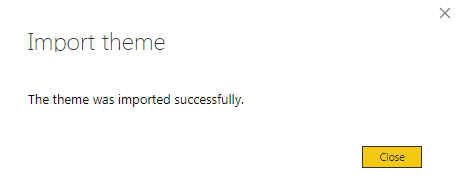
- Then, your Power BI may show a message as “The theme was imported successfully.” And click on “Close.”
- Your dashboard immediately impacts the data colors mentioned in the JSON file Hex color codes.
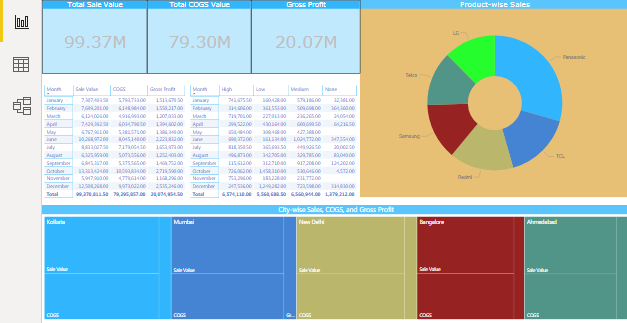
The dashboard above looks new because of the newly designed JSON theme file.
Import Live Theme Json Codes from Online Power BI Store
One more interesting thing you can do with the custom theme is a search on the Microsoft website and import new theme files online.
- For this, click on the “Theme gallery” option under the “Switch Theme” drop-down list of Power BI.
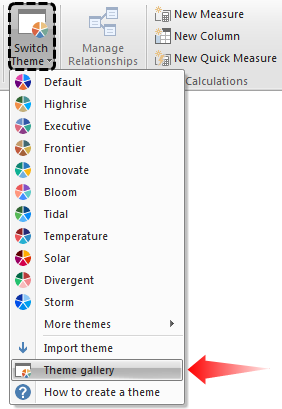
- It will take you to the below web page.
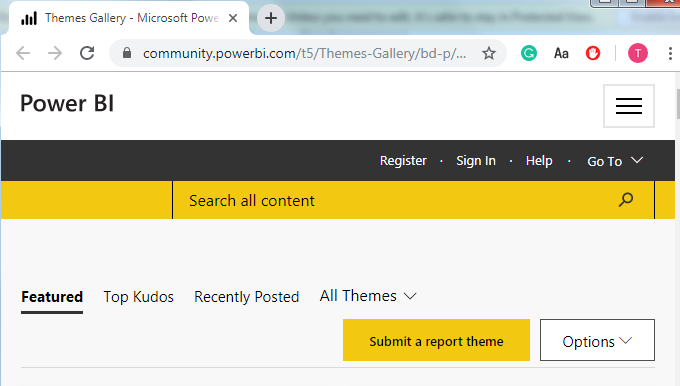
- We can click on any of the themes from the above window and download the JSON file. For example, we have clicked on “Sunflower Twilight Theme.” For this, we can see the preview as shown below.

- Click on the “JSON” file to download the JSON file.
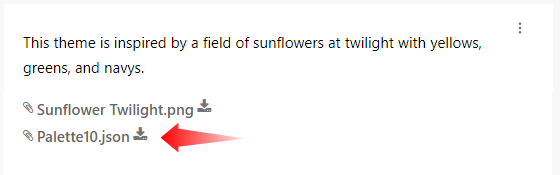
Once the file is downloaded, as usually “Import” the JSON theme file to Power BI. Immediately, your dashboard will change as per the JSON file code.
Things to Remember
- Power BI uses the default theme, as the product development team mentioned.
- By writing JSON codes, we can change the theme.
- We can find many themes of JSON codes on the Microsoft website.
Recommended Articles
This article is a guide to Power BI Themes. Here, we discuss changing the dashboard report’s default theme and creating your own Power BI theme using JSON code. You can learn more about Power BI from the following articles: –