


Part of our Excel Shortcuts guide
Shortcut for Merge and Center in Excel
In the Excel worksheet, merging the cells is not a user-friendly option to navigate. But we still use it to fit the reported alignment. Many users often ask about the blog’s shortcut key to merge and center cells in Excel. Unfortunately, there are no default shortcut keys for this technique. But no need to despair because we will use other shortcut keys to merge and center cells in Excel. To explore more Excel tips and advanced techniques, click here to view more helpful guides. However, there are circumstances where we need to merge cells to make the report look neat and aligned properly. This article will show you how to merge and make them center aligned using shortcut keys in Excel.
How to Use Shortcuts for Merge & Center?
Below are examples of excel shortcuts for merge and center.
#1 – Manual Method
- For example, look at the below data table.
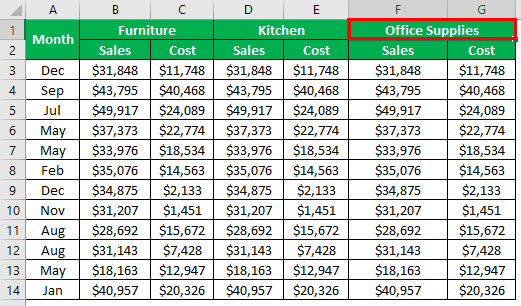
We have a category-wise and month-wise summary. For example, we have “Sales” and “Cost” in the first-row category. But each category is not neatly aligned. Since the category belongs to both “Sales” and “Cost,” we need to make this a single header for these by merging the cells.
- Before we merge, we must first select the value cell for the cells we need to merge. In this case, we need to merge the “Furniture” category to B1 and C1 cells, so select B1 and C1 cells.

- Under the “HOME” tab, we have an option called “Merge & Center in Excel,” so click on this option.

- Consequently, it will instantly merge the selected cell and make the alignment as “Center.”

- The “Merge & Center” option is highlighted, which means the active cell is applied with a merge option. Similarly, we have the other two categories to merge, so repeat the same action for the other two.

Once the “Merge & Center” formatting is applied for the first category cell for the other two, we need not use the “Merge & Center” formatting option again. Instead, we can use the “F4” function key.
- After merging first category cells, next, we must select second category cells.

- Now, press the “F4” key to repeat the previous action of “Merge & Center.”

- Do the same thing for one more category as well.

#2 – Using Shortcut Key (ALT + H + M + C)
Manual methods are to start things off. But after a while, you must start using excel shortcut keys to work efficiently. Unfortunately, there is no default shortcut key to “Merge & Center,” but let us discover it now.
Follow the below steps to merge and center cells in Excel using the shortcut key.
- We must press the “ALT” key to highlight the shortcut alphabets for each ribbon.

- Press “H” to go inside the “Home” tab since the “Merge and Center” option is available under the “Home” tab.

- Upon pressing the “M” key, it opened up other “Merge and Center options.” From these lists, we need to select the option of “Merge and Center,” so the shortcut key is “C.”

- Shortcut key to merge & center:

Other Options for Merge
We have four different options under “Merge & Center.” Let us know what those options are:
- Merge & Center: This will merge the selected cells into one and make the alignment of the text in the cell as the center. The shortcut is “ALT + H + M + C.”
- Merge Across: This will merge the selected cells into one and make the alignment of the text in the cell right. The shortcut is “ALT + H + M + A.“.
- Merge Cells: This will only merge the selected cells into one. The shortcut is “ALT + H + M + M.“
- Unmerge Cells: This will reverse above all. This option will unmerge all the merged cells. The shortcut is “ALT + H + M + U.“
Case Study of Merge & Center
- Let us look at this case study of “Merge & Center.”

“Q1” is for the first three months, Q2 is for the second three months, etc. Assume we need to merge Q1 to the first three cells, Q2 to the next three cells, etc. Doing these four times will not take more time, but there are instances where we need to do it 100 times. In those cases, this technique is very important.
- First, we must merge three cells.

- We need to double-click on “Format Painter in Excel“ by selecting the merged cell..

- Now, keep pressing the down arrow key until the cell reaches the merging of cells. In this case, we need to press the down arrow three times to apply the same formatting to other quarters.

So, all the cells merged with the same alignment.
Like this, we can use this technique in the case of cells with matching merging options.
Things to Remember here
- In the case of merging multiple times of the same cell length, we must use “Format Painter” to avoid unnecessary steps.
- If merging cells have values, they may ask permission before merging.
Recommended Articles
This article has been a guide to Excel Shortcut for Merge and Center. We discussed merging and center-aligning the cells using shortcut keys in Excel and practical examples and downloadable Excel templates. You may also look at these useful functions in Excel: –