


Part of our Pivot Tables in Excel guide
Delete Pivot Table in Excel
As you know, a PivotTable is used to summarize the raw data into an informative table. And you can easily remove a PivotTable by following the below simple steps; generally, the PivotTable has shown the error message -“We can’t make this change for the selected cells because it will affect a PivotTable” to prevent the accidental deletion of data.
Deleting a pivot table in Excel is a quick process that removes the summary table layout while keeping your original source data safe.Is Dividend Expense?
Deleting Pivot Table Excel Template
Download Excel TemplateHow to Delete Pivot Table From Excel?
Steps to Delete a Pivot Table in excel. We have the following steps for the same. Deleting a pivot table is not a complicated process.
- Select the Pivot Table: Click anywhere inside your Pivot Table.
- Go to the Analyze Tab: Click the PivotTable Analyze tab at the top of Excel.
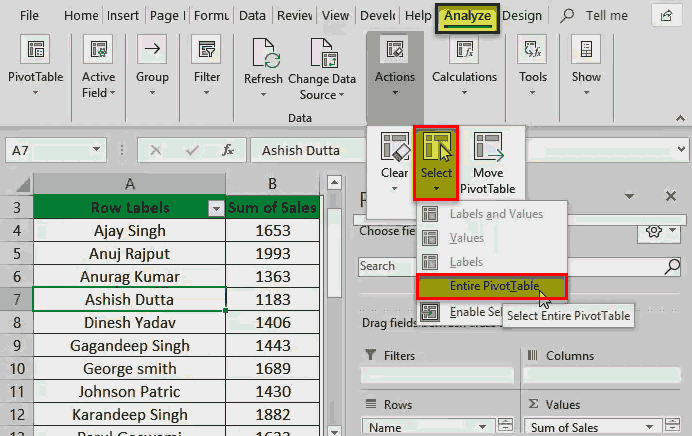
- Use the Select Command: Click the Select button in the ribbon, then choose Entire PivotTable.
- Press Delete: Press the Delete or Backspace key on your keyboard to clear the table and its data.
- Remove formatting (Optional): If the empty cells still look styled, go to the Home tab, click Clear, and choose Clear All.
Let us understand this with some practical examples.
Example #1 – Removing a Pivot table
Below are the steps used for deleting pivot table from excel –
- If we cannot make this change for the selected cells because it may affect a PivotTable, as shown in the screenshot below, we must choose the whole PivotTable by pressing u0022Ctrl + Au0022 and then press the u0022Deleteu0022 button again.

- Then, pick a cell anywhere in the PivotTable to show the Pivot Tools on the ribbon.
Click on the u0022Selectu0022 tab, select the u0022Entire PivotTable,u0022 and then press the u0022Deleteu0022 key.Else, we must select the u0022Clear Allu0022 option under the u0022Analyzeu0022 in the same tab, u0022Clearu0022 (as shown in the below screenshot).Raw Date:Pivot Table Data:

Example #2 – Remove the Pivot Table by Keeping the Stored Data
We first create a backup for the PivotTable data and then remove the pivot table.
- Copy the data from the PivotTable and paste it as values to another location, as shown in the below figure.
- Then follow the step of Removing a Pivot Table.
Example #3 – Removing the Entire Worksheet
We can delete the entire Excel sheet with the PivotTable to remove a PivotTable from an Excel workbook.
Select the sheet in which the PivotTable is located, right-click on the sheet name, and select the “Delete” sheet to delete the entire worksheet, as shown in the figure below.

Things to Remember Here
- We must always take a backup of data before removing the PivotTable.
Deleting a Pivot Table in Excel is a quick and straightforward process that completely removes the summarized data and layout from your worksheet without affecting your original source data. By using the dedicated selection tool in the ribbon, you ensure that all associated cells, formatting, and filters are cleanly wiped out in a single step. This allows you to easily free up space, reset your workbook, or build a fresh report from scratch whenever your data needs change.
You can download this How to Remove Pivot Table in Excel template here – Remove Pivot Table Excel Template
Recommended Articles
For more on Pivot Tables in Excel, explore these related articles from our Pivot Tables in Excel guide.